Posted on

High Resolution Image Design for Print & Digital: Best Practices New Designers

High Resolution Image Design

Table of Contents

  1. Introduction to High Resolution Image Design
  2. What Is High Resolution Image Design?
  3. Why High Resolution Matters in Modern Design
  4. Common Causes of Blurry or Low-Quality Images
  5. DPI, PPI, and Pixel Dimensions Explained
  6. Best File Formats for High Resolution Image Design
  7. Typography and Fonts in High Resolution Design
  8. How to Prepare Images for Print and Digital Use
  9. Professional Font Mockup Examples for High Resolution Design
  10. Final Thoughts

1. Introduction to High Resolution Image Design

In today’s visually driven digital world, high resolution image design is no longer optional—it’s essential. Whether you’re creating branding assets, website visuals, social media graphics, or print materials, image clarity directly affects how professional and trustworthy your brand appears.

Designers often invest time in color theory and layout but overlook resolution, leading to blurry visuals that reduce impact. This guide will help you understand how to create crisp, clean, and professional designs that look sharp on every screen and print medium.

2. What Is High Resolution Image Design?

High resolution image design refers to creating visuals with sufficient pixel density, clarity, and sharpness so they appear detailed and clean at their intended size.

A high resolution image typically includes:

  • Proper pixel dimensions
  • Correct DPI/PPI settings
  • Non-compressed or minimally compressed formats
  • Sharp typography and vector-based elements

When done correctly, high resolution designs maintain clarity whether viewed on retina displays, large monitors, or printed materials.

High Resolution Image Design

3. Why High Resolution Image Design Matters

High resolution image design is critical because it:

  • Enhances brand credibility
  • Improves user experience
  • Ensures print accuracy
  • Prevents pixelation on high-density screens
  • Makes typography appear sharp and professional

Low-quality visuals can instantly damage trust, especially for creative brands, digital products, and typography showcases.

4. Common Causes of Blurry or Low-Quality Images

Even experienced designers sometimes struggle with image clarity. Common mistakes include:

  • Using images smaller than required
  • Stretching raster images beyond their original size
  • Exporting with low DPI for print
  • Excessive compression
  • Using low-quality fonts or rasterized text

Avoiding these mistakes is the foundation of effective high resolution image design.

5. DPI, PPI, and Pixel Dimensions Explained

Understanding these three concepts is essential:

  • Pixel Dimensions: The actual width and height of an image in pixels
  • PPI (Pixels Per Inch): Used for digital screens (72–144 PPI typical)
  • DPI (Dots Per Inch): Used for printing (300 DPI standard)

For print design, always use 300 DPI with large pixel dimensions. For digital designs, prioritize pixel size over DPI.

6. Best File Formats for High Resolution Image Design

Choosing the right format ensures your designs stay sharp:

  • PNG – Best for web, transparency, and sharp typography
  • JPEG – Smaller file size, but avoid excessive compression
  • SVG – Ideal for logos and vector typography
  • PDF – Best for print-ready designs
  • TIFF – High-quality print production

For typography-focused visuals, PNG and SVG are often the best choices.

7. Typography and Fonts in High Resolution Image Design

Typography plays a major role in perceived image quality. Poor font choices can ruin even the best layout.

High-quality fonts:

  • Render cleanly at large sizes
  • Maintain detail when exported
  • Look sharp on high-resolution displays

Premium fonts are especially important for:

  • Branding
  • Logo design
  • Posters
  • Product mockups
  • Website headers
High Resolution Image Design

8. How to Prepare High Resolution Image Design for Print and Digital Use

For Digital Use:

  • Export at 2× or 3× resolution
  • Use PNG or SVG
  • Avoid over-compression
  • Preview on high-density screens

For Print Use:

  • Set canvas to final print size
  • Use 300 DPI
  • Export as PDF or TIFF
  • Use CMYK color mode

These steps ensure your high resolution image design remains consistent across platforms.

9. Professional Font Mockup Examples for High Resolution Design

Using premium fonts significantly enhances visual clarity and professionalism. Below are excellent font examples from CalligraphyFonts.net that work beautifully in high resolution designs:

  • Shotflick Font – A bold display font perfect for sharp headlines and modern branding
  • Holdsmith Font – Elegant signature style ideal for premium mockups and luxury designs
  • Ameralda Font – Artistic and expressive, great for creative high-resolution typography
  • Shailendra Font – Classic calligraphy style that remains crisp even at large sizes

These fonts are ideal for showcasing high resolution image design in both digital and print mockups.

10. Final Thoughts

Mastering high resolution image design is about more than just large images—it’s about precision, preparation, and quality assets. From understanding DPI to choosing premium fonts, every detail matters.

By combining proper resolution settings with professional typography from CalligraphyFonts.net, your designs will look sharper, more polished, and more impactful across all platforms.

Authority References

  • Dribbble — High Resolution
  • Freepik — High resolution Images
  • Adobe Stock — High-Resolution Design Images
  • Din Studio — Pro Tips: How to Make a High Definition, Not Blurry Design
Posted on

Bitmap vs Vector Graphics: Understanding New Key Differences for Designers

Bitmap vs Vector Graphics

Table of Contents

  1. Introduction
  2. What Are Bitmap Graphics?
  3. What Are Vector Graphics?
  4. Key Differences Between Bitmap and Vector
  5. When to Use Bitmap Graphics
  6. When to Use Vector Graphics
  7. Common File Formats for Bitmap & Vector
  8. Why Designers Should Understand Both Types
  9. Best Fonts for Visual Mockups in Bitmap vs Vector Projects
  10. Conclusion
  11. References

1. Introduction

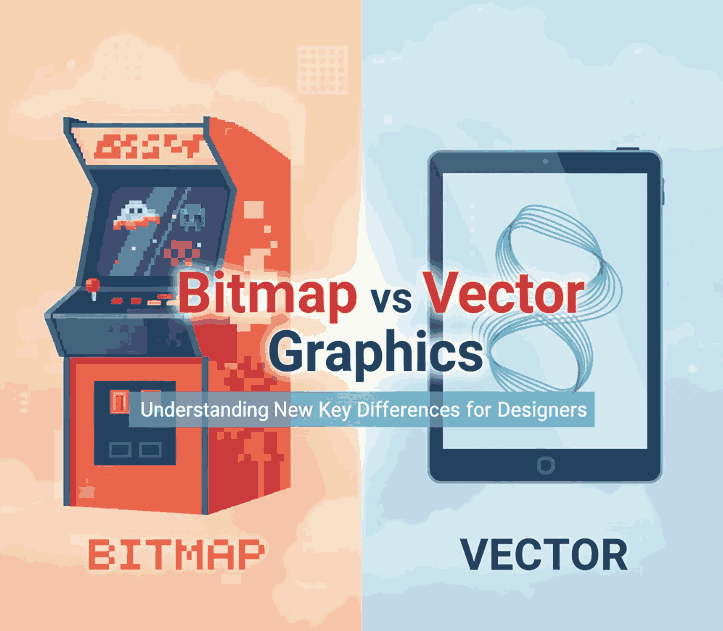
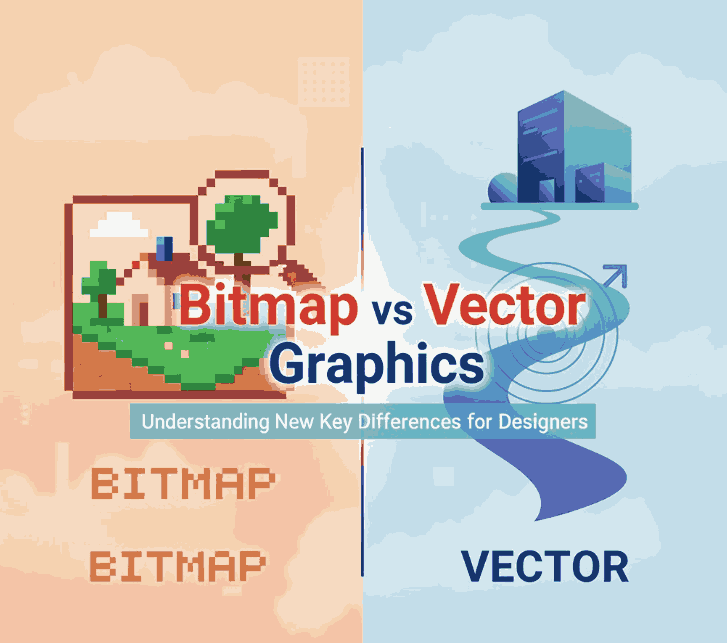
Bitmap vs Vector Graphics In the world of digital design, one of the most fundamental concepts designers must understand is the difference between bitmap and vector graphics. Whether you create illustrations, logos, UI assets, posters, or digital branding, knowing how each format works can dramatically improve your workflow and ensure better quality results.

This article breaks down Bitmap vs Vector Graphics in an easy, comprehensive way—perfect for beginners and professionals. You will also find font recommendations from CalligraphyFonts.net to help you create stunning visuals and mockups that match your design workflow.

Bitmap vs Vector Graphics

2. What Are Bitmap vs Vector Graphics?

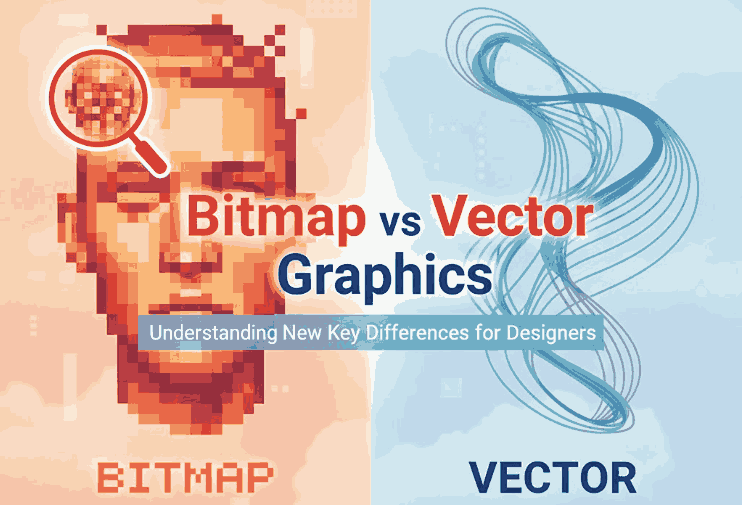
Bitmap graphics—also known as raster images—are made up of a grid of tiny squares called pixels. Each pixel contains color information, creating the final image.

Characteristics of Bitmap vs Vector Graphics

  • Pixel-based
  • Resolution-dependent
  • Can become blurry when enlarged
  • Ideal for complex images like photos

Common Uses

  • Photography
  • Digital painting
  • Web graphics
  • Texture-heavy visuals

3. What Are Bitmap vs Vector Graphics?

Vector graphics are made using mathematical paths rather than pixels. This means shapes are defined by formulas, allowing the image to scale without losing quality.

Characteristics of Bitmap vs Vector Graphics

  • Formula/path-based
  • Resolution-independent
  • Scalable to any size
  • Ideal for logos, icons, and illustrations

Common Uses

  • Branding
  • Print materials
  • Icons & UI elements
  • Technical illustrations

4. Key Differences Between Bitmap vs Vector Graphics

Understanding the differences helps you choose the right format for each project.

1. Scaling

  • Bitmap: loses quality when enlarged
  • Vector: scales infinitely with no loss

2. File Size

  • Bitmap: typically larger
  • Vector: often smaller unless highly complex

3. Detail & Realism

  • Bitmap: great for detailed imagery
  • Vector: best for simple, clean shapes

4. Editing

  • Bitmap: edited pixel by pixel
  • Vector: edited by adjusting paths & nodes

5. Compatibility

  • Bitmap: universally supported
  • Vector: requires specific design software

5. When to Use Bitmap vs Vector Graphics

Bitmap is the best choice when working with:

  • Photographs
  • Texture-rich digital art
  • Realistic shading & gradients
  • Photo manipulation
  • Detailed backgrounds

Because bitmap graphics capture subtle color variations, they are ideal for visually rich projects.

Bitmap vs Vector Graphics

6. When to Use Bitmap vs Vector Graphics

Vector graphics are the top choice for:

  • Logos & branding
  • Icons & interface design
  • Typography & lettering
  • Posters, merchandise & print
  • Scalable illustrations

Vectors ensure your designs look sharp at any size—from business cards to billboards.

7. Common File Formats for Bitmap vs Vector Graphics

Bitmap Formats

  • JPG / JPEG – compressed, widely used
  • PNG – supports transparency
  • GIF – basic animation
  • TIFF – high-quality images

Vector Formats

  • SVG – web-friendly vector format
  • AI – Adobe Illustrator
  • EPS – print industry standard
  • PDF – scalable vector-compatible format

8. Why Designers Should Understand Both Types

Mastering both bitmap and vector workflows allows designers to:

  • Optimize images for print and digital platforms
  • Choose the right format for maximum clarity
  • Improve production efficiency
  • Collaborate better with printers and developers
  • Deliver professional-level results

Understanding these formats is essential in any creative industry—from UI/UX design to branding and illustration.

9. Best Fonts for Visual Mockups in Bitmap vs Vector Projects

To enhance the clarity and professionalism of your “Bitmap vs Vector” visuals or blog images, here are recommended fonts from CalligraphyFonts.net:

1. Faint Green Font

Perfect for clean layouts, diagrams, and explanatory visuals. The minimalist sans-serif style is ideal for comparing bitmap and vector formats.

2. Speed Attack Font

A bold, dynamic display font great for headers, titles, or infographic elements that require energy and modern appeal.


3. Pictorial Style Font

Ideal for labeling charts or creating eye-catching headings. Its stylish yet readable form works perfectly with technical design topics.

4. Monoscreen Modern Font

A futuristic and digital-feel font—excellent for tech-related mockups, UI/UX diagrams, and illustrations discussing digital formats.

Using these fonts in mockups or article graphics will help visually communicate the difference between bitmap and vector in a clean and engaging way.

10. Conclusion

Both bitmap and vector graphics play essential roles in modern design. Bitmaps are perfect for photos and detailed imagery, while vectors excel at scalability and clean, sharp shapes. Understanding these differences allows designers to choose formats wisely and deliver high-quality results for any project.

With the right fonts—like those from CalligraphyFonts.net—you can create striking visuals, infographics, and mockups that effectively reinforce the concepts behind each format.

11. References