Posted on

What is Digital Illustration: A New Comprehensive Guide for Creatives

What is Digital Illustration

Table of Contents

  1. Introduction
  2. Defining Digital Illustration
  3. How Digital Illustration Differs from Traditional Illustration
  4. The Tools & Techniques of Digital Illustration
  5. Practical Applications: Where Digital Illustration Meets Typography & Design
  6. Examples of Fonts to Use in Digital Illustration Projects
  7. Conclusion
  8. References

1. Introduction

What is Digital Illustration In today’s visual driven world, illustration has taken a major leap beyond pen and paper. With the rise of tablets, powerful software and digital workflows, understanding What is Digital Illustration has become key for designers, typographers and creative entrepreneurs alike.

For a business like CalligraphyFonts.net — where you design, create and sell a variety of fonts — digital illustration is especially relevant. Whether you’re developing font displays, mock-ups, branding visuals or mixed media pieces, the intersection of font design and digital illustration offers rich creative potential. In this article, we’ll define digital illustration, explore how it differs from traditional methods, dig into tools and techniques, highlight how it relates to typography and font work, and show how you can apply high-quality fonts from your collection to these kinds of projects.

What is Digital Illustration

2. Defining Digital Illustration

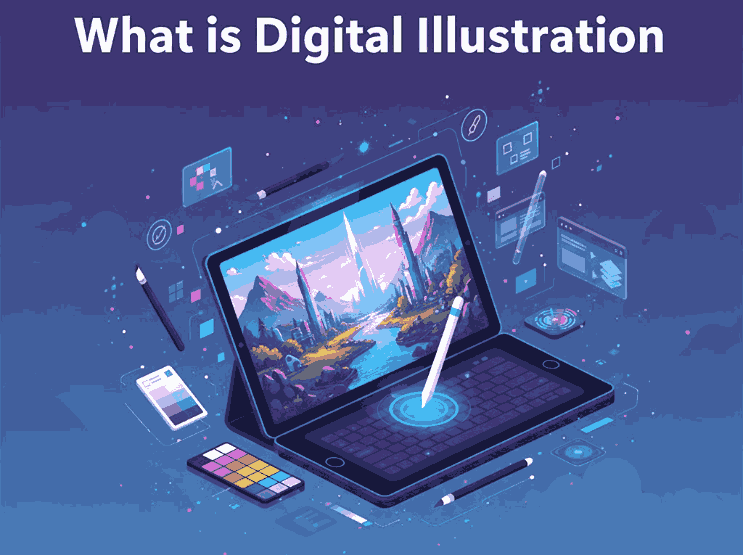
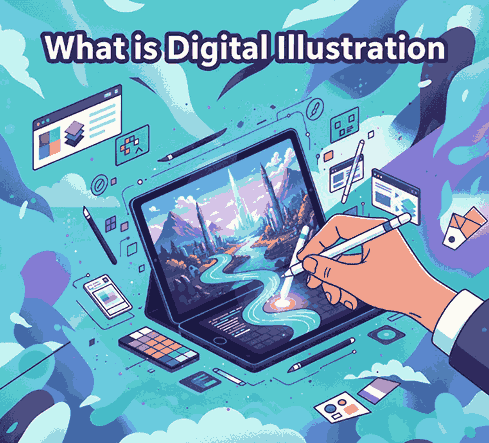
At its core, digital illustration is the process of creating images using digital tools and software — from sketches drawn on a tablet to fully realised vector compositions. As one authoritative source states:

“Digital illustration is the creation of a narrative image that tells a story, conveys an emotion or mood, or sells a concept or product.”

Another source defines it simply as:

“Artwork created or enhanced using digital tools or software, rather than purely traditional, physical media.”

So when you ask “what is digital illustration?”, think of:

  • working on a computer or tablet rather than paper
  • using software like Adobe Photoshop, Illustrator, Procreate or Clip Studio Paint
  • creating artwork that may include or combine vector shapes, raster painting, textures, typography and more
  • producing visuals for multiple applications: branding, web, print, motion, packaging

3. How Digital Illustration Differs from Traditional Illustration

While both digital and traditional illustration share the goal of visual storytelling, the key differences lie in tools, workflow and flexibility. Some distinctions:

  • Materials: Traditional uses physical paper, canvas, brushes, inks; digital uses a tablet, stylus, software and screen.
  • Editability: Digital illustrations allow undo, layering, blending, resizing without loss of quality—vastly different from most physical methods.
  • Distribution: Digital work is easily adapted for web, animation, print and scalable formats; traditional may need scanning or digitisation.
  • Hybrid possibilities: Many digital illustrators combine techniques—drawing on paper, scanning, then enhancing digitally. According to one article: “A digital illustration refers to artwork created using digital tools and techniques such as drawing tablets, software programs and computer graphics.”
  • Tools & specialisation: For example, older illustration may emphasise brush strokes and textures; digital adds vector precision, effects, 3-D mimicry and motion.

For designers and font companies, embracing digital illustration means leveraging these advantages: editable mock-ups, scalable art, quick iteration and integration with typography and branding workflows.

4. The Tools & Techniques of What is Digital Illustration

Tools

Typical digital illustration workflows include:

  • A graphics tablet or pen-display (e.g., Wacom, Huion) or tablet device such as iPad + Apple Pencil. One beginner guide notes: “Look for a computer with at least 8 GB RAM … a laptop or desktop with a drawing tablet …”
  • Software like Adobe Photoshop (raster), Adobe Illustrator (vector), Procreate, Clip Studio Paint, or other digital drawing applications.
  • Input devices with pressure sensitivity, layering systems, vector paths, brushes and masks.

Techniques

Some common techniques include:

  • Vector illustration: Using anchor points, curves and fills to create crisp scalable artwork.
  • Digital painting: Mimicking traditional painting using digital brushes, textures and layers.
  • Mixed media / hybrid: Combining scanned textures, hand-drawn elements and digital enhancements.
  • Vector + raster workflows: Many illustrators use both, especially when integrating typography or logos.
  • Motion / interactive illustration: As digital tools evolve, illustration can include animation, interactive elements and more.

Workflow Tips

  • Start with a concept/sketch (digital or paper).
  • Create layers (background, mid-ground, foreground) for easier editing.
  • Use typography and font elements if working with branding or illustration-for-type contexts.
  • Export in appropriate formats (raster for web, vector for logos, high resolution for print).
  • Reuse and adapt for multiple applications (social media, packaging, web banners).

5. Practical Applications: What is Digital Illustration Meets Typography & Design

What is Digital Illustration

Because you run a font-design business, integrating digital illustration with typography offers powerful opportunities:

  • Font display mock-ups: Use digital illustration to create scenes or compositions where your fonts are shown in use—this helps customers visualise them in branding, packaging or editorial.
  • Custom lettering / type design: Illustrators can hand-draw or digitally paint letterforms, then convert or refine them into fonts.
  • Branding & logo work: Digital illustration adds bespoke illustrative elements around text—so a font becomes part of a broader brand visual.
  • Digital product assets: Icons, patterns, backgrounds and textures created via digital illustration enhance packaging, visual identity and font promotional materials.
  • Educational / tutorial content: Share your process of creating a font or illustration via digital tools—this builds authority and engages your audience.

As you review your font range on CalligraphyFonts.net, consider how each font might pair with illustrative backgrounds or compositions. For example:

  • Senjalara Calligraphy Font — perfect for hand-painted digital illustrations or modern calligraphy contexts.
  • Classicly Font — elegant serif that pairs with digital illustration in editorial or branding contexts.
  • Allure Aesthetic Font — stylish script suited for lifestyle illustration backgrounds.
  • Aesthetic Stories Font — ideal for combining with whimsical digital illustration motifs or social-media visuals.

6. Examples of Fonts to Use in What is Digital Illustration Projects

Here are the specific fonts from your collection that integrate beautifully with digital illustration workflows:

  • Senjalara Calligraphy Font – Can be used with hand-drawn brush textures or digital painted flourishes.
  • Classicly Font/ – Pairs well with minimalist digital illustration for packaging or branding.
  • Allure Aesthetic Font/ – Combine with soft digital pastel illustrations for lifestyle/social media design.
  • Aesthetic Stories Font/ – Great for combining illustrated backgrounds, digital collage and type in one visual asset.

With these fonts, you can create mock-ups, promotional visuals or even font bundles aimed at designers who do illustration + type work. It’s a smart way to position your fonts within the digital illustration trend.

7. Conclusion What is Digital Illustration

Understanding What is Digital Illustration is and how it integrates with typography and design empowers you as a font-creator and a visual innovator. The digital illustration process offers remarkable flexibility, scalability and creative control—ideal for modern design and font display.

For your business at CalligraphyFonts.net, leveraging digital illustration means you’re not just selling fonts—you’re providing creative assets that work within rich visual ecosystems. Use illustration to enhance your font offerings, create compelling brand visuals, and connect with a design-savvy audience. The digital canvas is expansive—let your typography and illustration shine.

8. References

Posted on

Unlock Canva Pro: The Guide to Smarter, Faster Design

Canva Pro Pricing Upgrade

Table of Contents

  1. Introduction
  2. Canva’s Pricing Structure in 2025
  3. Key Features You Get with Canva Pro
  4. Free vs Pro: What You Gain
  5. Why Upgrade? Return on Creative Investment
  6. How Canva Pro Supports Font & Design Entrepreneurs
  7. Showcase Fonts using Canva Pro + Mockups
  8. Final Verdict
  9. References

1. Introduction

If you’re designing, branding, or selling fonts (like us), you may wonder whether upgrading to Canva Pro Pricing Upgrade is a worthwhile decision. The phrase “Canva Pro pricing upgrade” captures this exact dilemma for many creatives. With Canva becoming more feature-rich and AI-driven, the question isn’t simply “Can I afford Pro?” but rather “Will Pro help me scale, save time, or increase revenue?”

In this article, we break down what you actually get with Canva Pro, compare it against the free plan, and argue when the upgrade makes sense—especially for font creators, designers, and small creative businesses.

Canva Pro Pricing Upgrade

2. Canva’s Pricing Structure in 2025

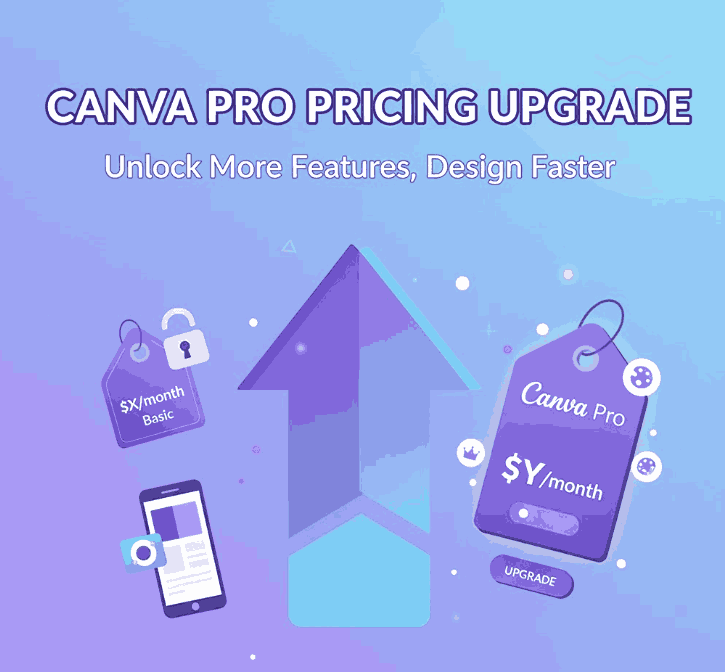
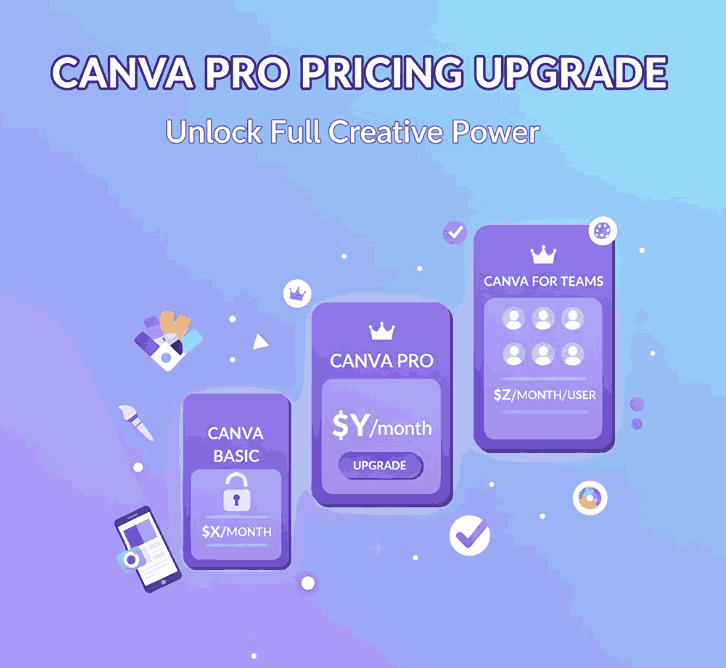
Let’s begin with the numbers. According to Canva’s official pricing page, Canva offers multiple tiers including Free, Pro, Teams, and Enterprise.

External sources confirm that Canva Pro is priced around USD 12.99/month or USD 119.99/year (varies by region).
Moreover, Canva now heavily leans into AI enhancements and generative tools (Magic Studio, etc.), which feed into justification for pricing, especially for business/teams users.

Note: Canva sometimes adjusts regional pricing, and recently its Teams plan faced steep increases owing to AI feature rollouts.

3. Key Features You Get with Canva Pro

Upgrading unlocks a suite of advanced features not present (or only limited) in the free plan. Some of the most compelling ones:

  • Access to Premium Content Library — Over 100 million photos, illustrations, videos, audio assets included without extra cost.
  • Brand Kit & Font Uploads — You can define brand colors, logos, and upload your custom fonts to maintain consistency.
  • Background Remover Tool — One-click or automatic background removal for images, useful for product mockups.
  • Magic Resize / Reformatting Tools — Instantly adapt a design to different dimensions (Instagram, stories, posters).
  • Advanced Export Options — Export in SVG, transparent PNG, animated GIF/MP4 (depending on design).
  • Larger Storage & Folders — Instead of 5 GB (free), you often get 1 TB in Pro.
  • Generative AI Tools — Higher usage quotas of Magic Write, image generation, text-to-image, etc.
  • Better Collaboration & Workflow Features — Shared projects, version history, approval workflows (especially useful if you work in a small agency or team).
  • License Simplicity — Pro users automatically receive “Pro content license” so you don’t have to separately buy usage rights for many design assets.

Together, these features give Pro users a much more capable design workflow.

4. Free vs Pro: What You Gain

Here’s a side-by-side snapshot:

FeatureCanva FreeCanva Pro
Storage~5 GB Unlimited Graphic Design ~1 TB
Templates & AssetsLimited free templates + free elements Premium + full access to 100M+ assets
Brand Kit / FontsBasic color palette, limited branding toolsFull Brand Kit, font uploads, multiple brand kits
Background RemovalNot built in (or very limited)
Unlimited Graphic Design
Full background remover included
Resize / ReformatManual resizing onlyMagic Resize / automatic reformatting Unlimited Graphic Design
Export FormatsPNG, JPG, PDF (basic) SVG, transparent PNG, animation exports
AI & Generative ToolsLimited usageExpanded credits, full access
Collaboration / WorkflowBasic sharing and commentingAdvanced sharing, approval flows, team tools Unlimited Graphic Design

From a functional perspective, the gap is quite wide — for casual users, Free may suffice. But for professionals, Pro offers a productivity boost.

5. Why Upgrade? Return on Creative Investment

When considering a Canva Pro Pricing Upgrade, you want to see returns in either time saved, higher quality output, or increased revenues / sales.

  • Time Efficiency: Tools like Magic Resize, background remover, and template reuse dramatically reduce hours per design.
  • Consistency & Branding: With brand kits and custom font uploading, every design stays on brand, which is essential for brand identity.
  • Better Assets: Access to premium stock, illustrations, and design elements means fewer external purchases or workarounds.
  • Scalability: As your font business or design studio grows, collaboration, workflows, and team features become critical.
  • AI Leverage: Generative tools can speed ideation, mockups, or variations, giving you more creative options in less time.
  • License simplicity: With Pro content licensing, you reduce friction in using assets legally for commercial purposes.
Canva Pro Pricing Upgrade

If a single client project pays more than your monthly Pro cost—or if you reclaim hours weekly—the upgrade can pay for itself many times over.

6. How Canva Pro Pricing Upgrade Supports Font & Design Entrepreneurs

Because your business is centered on fonts and design, here’s how Canva Pro specifically helps:

  • Custom Font Previews & Mockups: Upload your fonts to create direct previews, sample text graphics, and promotional banners.
  • Product Marketing Assets: Use Pro templates + premium assets to create polished flyers, social media ads, and web banners.
  • Better Visual Consistency: Store your brand palette and logos, then apply them across all designs quickly.
  • Faster Iterations: You can generate multiple versions of one design quickly (e.g. size, colors, text) using AI or tools like Magic Resize.
  • Collaboration with Clients: Share editable previews with clients, allow comments, or receive feedback directly in Canva.
  • Mockup Realism: Remove backgrounds, place your fonts on product images or lifestyle photos seamlessly.
  • Reduced Asset Costs: Save on purchasing stock or graphic assets externally since many are bundled.

When selling fonts, first impressions matter.Canva Pro Pricing Upgrade helps you present your typefaces in compelling, high-quality contexts effortlessly.

7. Showcase Fonts using Canva Pro Pricing Upgrade + Mockups

Here are three font examples you can use in your Canva Pro Pricing Upgrade designs or promotional mockups (linking to your products as examples):

Using Canva Pro’s features, you can:

  • Upload each font and build brand templates around them
  • Use background remover + stock photography to mock them in real-world scenes
  • Generate social media banner sets with unique font treatments
  • Use generative AI or mockup tools to present fonts in varied contexts (e.g. packaging, greeting cards, logos)

These mockups, when done well, help potential customers visualize the font in use, increasing sales confidence.

8. Final Verdict Canva Pro Pricing Upgrade

The Canva Pro Pricing Upgrade is not just about paying for extra “nice-to-have” features. For serious creatives, using fonts commercially, or running design ventures, it’s a productivity multiplier and brand automator.

If your design workflows are frequent, your clients demand polish, or your font business needs a strong visual identity, Pro is a strategic investment. For occasional or hobby use, the free plan can still do the basics.

In short: Upgrade when it helps you deliver better results faster, not merely because of added features.

9. References

  1. Canva – Pricing & Plans (official)
  2. Canva — Pro Features (official)
  3. Spendflo — Canva Pricing Guide (2025)
  4. Penji — Canva Free vs Paid (feature comparison)