Posted on

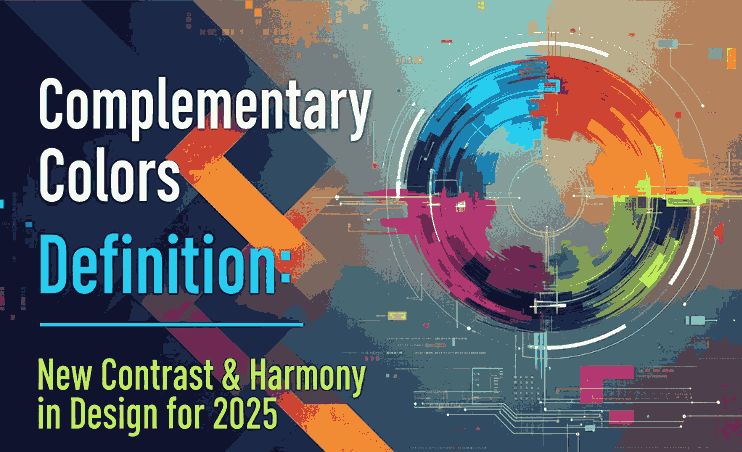
Complementary Colors Definition: New Contrast & Harmony in Design for 2025

Complementary Colors Definition

Table of Contents

  1. Introduction
  2. What Is the Definition of Complementary Colors?
  3. Why Complementary Colors Work — Visual & Psychological Effects
  4. Common Complementary Color Pairs (Examples)
  5. How to Use Complementary Colors in Your Design
  6. Applying Complementary Pairs in Typography & Font Mockups
  7. Font Mockup Ideas with Your Fonts
  8. Tools & Tips to Test Complementary Palettes
  9. Pitfalls to Avoid
  10. Conclusion & Call to Action
  11. References

1. Introduction

Color is one of the most essential tools in Complementary Colors Definition. How you combine colors can make a design feel harmonious or jarring, boring or vibrant. One of the foundational strategies in color theory is complementary colors. Understanding the Complementary Colors Definition—and how to use them skillfully—can instantly elevate your visual designs, including font demonstrations, branding, and marketing visuals.

In this article, we’ll explore the definition of complementary colors, why they are so powerful, practical examples, and how you can apply them in typography mockups and your font portfolio.

2. What Is the Definition of Complementary Colors?

By definition, complementary colors are pairs of colors that sit directly opposite each other on the color wheel.

Because they are opposites, these pairs generate strong contrast when placed side by side. This contrast is key to what makes complementary combinations so visually compelling.

In traditional art (RYB model), some classic complementary pairs are:

  • Red ↔ Green
  • Blue ↔ Orange
  • Yellow ↔ Purple

However, in digital and modern color models (RGB, CMYK), complementary pairs may shift—for example, red ↔ cyan, green ↔ magenta, blue ↔ yellow.
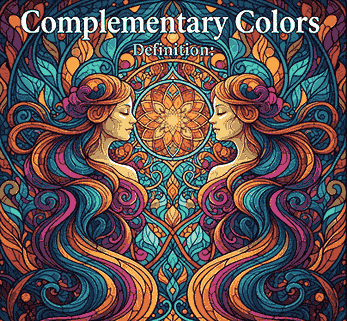
Complementary Colors Definition

3. Why Complementary Colors Definition Work — Visual & Psychological Effects

Visual Contrast & Enhancement

When complementary colors are adjacent, they make each other appear more vivid through a phenomenon known as simultaneous contrast.

In essence, placing two opposite hues together intensifies their brightness and visual presence, which is very useful for highlighting focal elements in a design.

Emotional & Psychological Impact

Complementary colors often combine a warm hue (e.g. red, orange, yellow) with a cool hue (e.g. blue, green, purple). This warm-cool tension resonates with human perception, creating emotional interest.

Used thoughtfully, complementary schemes can convey energy, drama, or clarity—depending on the two hues and their intensities.

4. Common Complementary Color Pairs (Examples)

Here are some widely used complementary pairs that you’ll see across design, branding, art, and media:

  • Red ↔ Green
  • Blue ↔ Orange
  • Yellow ↔ Purple
  • Red-Orange ↔ Blue-Green
  • Yellow-Orange ↔ Blue-Violet
  • Yellow-Green ↔ Purple-Red

A very popular cinematic example is teal and orange—this pair is used in films and movie posters because it delivers strong contrast and skin tones often fall into the orange spectrum.

These pairs are foundational, but what truly matters is how you use tints, shades, and saturation to adapt them for your design.

5. How to Use Complementary Colors Definition in Your Design

Complementary colors are powerful, but they must be handled with care to prevent visual overload. Here are best practices:

1. Use One Dominant, One Accent

Designers often let one color dominate (e.g. 70%) and use the complementary color sparingly for accent or call-to-action elements.

2. Soften One Hue

If two pure complements are too harsh, consider desaturating or lightening one to reduce strain on the eyes.

3. Use Neutrals

Introduce whites, grays, or blacks to buffer the contrast. This helps maintain an overall balanced composition.

4. Apply Contrast for Legibility

Complementary pairs are excellent for readable typography when one color is used for background and the other for text, as long as contrast is sufficient.

5. Use Variations

Don’t stick to pure complements only—use adjacent shades or variations so the pair feels more natural and less rigid.

6. Applying Complementary Colors Definition Pairs in Typography & Font Mockups

When working with fonts, complementary color schemes can help your typeface stand out while looking polished. Here’s how:

  • Headline & background pairing: e.g. use navy blue text on a soft orange background.
  • Accent letterforms or ornaments: Use complementary color for swashes, flourishes, or decorative details.
  • Interactive states: Use the complementary color for hover states, shadow layers, or outlines.
  • Layered typography: Use a faint layer of complementary color behind text (offset shadow) to create a subtle glow or halo effect.

Because your fonts are the hero of your branding, combining them with complementary colors gives visual punch without swamping the type.

7. Font Mockup Ideas with Your Fonts

Here are specific fonts from your collection and ways you can apply complementary color schemes in mockups:

  • Westerners Font — Use a burnt orange ↔ teal pair: Westerners in teal on burnt orange background, with accent details in modified orange tones.
  • Senjalara Calligraphy Font — Pair soft lavender (purple) text with pale green backgrounds, use green for decorative elements.
  • Ameralda Font — Use warm coral for Ameralda text and a muted turquoise as the complementary backdrop or shadows.

Such mockups show clients not just the font shape, but how it performs in real design context using foundational color theory.

8. Tools & Tips to Test Complementary Colors Definition Palettes

To experiment and validate color choices, these tools and tips help:

  • Adobe Color Wheel — Generate complementary pairs instantly.
  • Coolors.co — Lock one hue and see its complement variants.
  • Paletton — Explore complementary harmony modes.
  • Design software preview — Always preview your palette in situ (with text, images) before final use.
  • Contrast checkers — Tools like WebAIM contrast checker ensure your text is legible when using complementary backgrounds.
Complementary Colors Definition

These help you refine, test, and ensure your complementary color use is both bold and usable.

9. Pitfalls to Avoid Complementary Colors Definition

Complementary colors are strong, so avoid these common design missteps:

  • Overusing both colors equally → results in visual tension.
  • Using pure 100% saturation for both → may cause strain or look garish.
  • Poor contrast in text → complementary doesn’t always mean readable.
  • Ignoring color context → lighting, screen calibration, or nearby hues shift perception.
  • Not testing on different mediums → print, web, or mobile may render colors differently.

By being mindful, you can harness the strength of complementarity without tipping into chaos.

10. Conclusion & Call to Action Complementary Colors Definition

The complementary colors definition is simple: hues opposite each other on the color wheel that enhance contrast and vibrancy. But in practice, using them well is an art.

When expertly applied, complementary color pairs offer designers a powerful tool to draw attention, convey emotions, and make typography sing. Pair your page elements and font mockups with complementary palettes to give them visual clarity and dynamic energy.

Call to Action: Jika Anda ingin, saya bisa bantu buat template mockup font + panduan warna complementary (preset palette) khusus untuk koleksi font-mu agar klien tinggal ganti teks dan warna. Mau saya kirim versi itu?

11. References

Posted on

Unlock the Beauty of Double Complementary Color Palettes

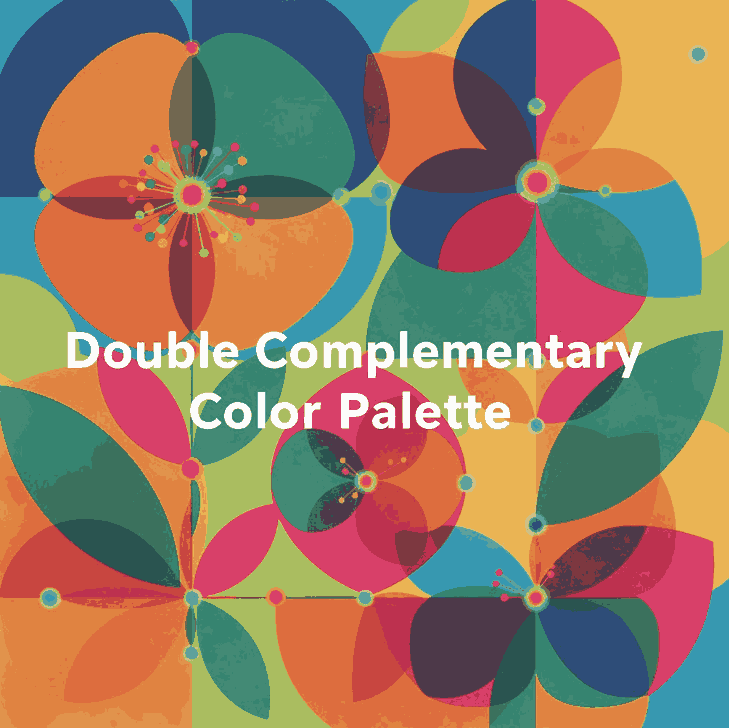
Double Complementary Color Palette

Table of Contents

  1. Introduction: Why Color Harmony Shapes Design
  2. What Is a Double Complementary Color Palette?
  3. The Power of Four: Advantages and Challenges
  4. How to Balance and Use Tetradic Colors
  5. Real Design Applications and Inspiration
  6. Applying Double Complementary Colors to Fonts
  7. Font Mockup Ideas for Designers
  8. Tools to Create Perfect Tetradic Palettes
  9. Final Thoughts and Pro Tips
  10. References

1. Introduction: Why Color Harmony Shapes Design

Colors are more than just decoration — they shape how people feel, perceive, and remember your brand. Whether you’re designing a logo, a web interface, or a font presentation, color harmony determines the impact of your work.

Among various color schemes, the Double Complementary Color Palette (also known as the Tetradic Color Scheme) stands out for its vibrancy and complexity. It offers endless creative possibilities — if you know how to control it.

For type designers and visual creators at CalligraphyFonts.net, mastering this palette helps you craft font mockups that look dynamic yet balanced, bold yet sophisticated.

Double Complementary Color Palette

2. What Is a Double Complementary Color Palette?

A Double Complementary Color Palette uses four colors arranged as two complementary pairs — for example:

  • Blue and orange
  • Green and red

These four colors form a rectangle on the color wheel, offering both contrast and variety.
This palette is also known as a Tetradic scheme because it uses four hues equally spaced around the color wheel.

Unlike monochromatic or analogous palettes, the double complementary setup gives you both warm and cool tones, creating an energetic and visually rich design.

3. The Power of Four: Advantages and Challenges

Advantages

  • Vibrant and versatile — You can express depth and personality in your design using four diverse hues.
  • Perfect for highlights — It allows creative use of accent colors for typography, icons, or buttons.
  • Balanced warm and cool contrast — This keeps visuals dynamic and emotionally balanced.

Challenges

  • Easily becomes overwhelming if all four colors are used equally.
  • Requires careful dominance — One color must take the lead, while others support it.
  • Color conflicts can occur if saturation or brightness levels clash.

To avoid chaos, pick one main color, use one as a secondary tone, and the other two only for highlights or accents.

4. How to Balance and Use Tetradic Colors

Balancing a four-color palette requires both artistic sense and technical planning. Here are practical tips:

  1. Choose a dominant hue.
    This color should cover around 60% of your design (like background or large shapes).
  2. Use secondary hues for support.
    Allocate around 30% for secondary visuals such as borders, icons, or graphic accents.
  3. Reserve the last pair for details.
    Keep them to 10% — perfect for typography effects or hover interactions.
  4. Desaturate or lighten secondary tones.
    This prevents harsh clashes and keeps harmony consistent.
  5. Add neutrals.
    White, gray, or beige spaces calm down the composition and improve readability.
Double Complementary Color Palette

5. Real Design Applications and Inspiration

Tetradic color harmony appears everywhere in digital and print design.
Here are a few ways professionals use it effectively:

  • Branding: A double complementary palette gives brands a dynamic and multidimensional look. For example, a combination of deep blue, orange, red, and green conveys energy and diversity.
  • UI Design: Designers use one color for primary buttons, its complement for hover states, and the second pair for accent borders or illustrations.
  • Poster Design: It’s common in modern poster layouts where one color dominates, and others appear in geometric or text details.

6. Applying Double Complementary Color Palette to Fonts

When it comes to typography and font mockups, this palette offers exciting visual potential — if handled with subtlety.

Try these design principles:

  • Use strong contrast: For example, orange text on a blue background looks bold and readable.
  • Highlight details: Apply the second complementary pair to emphasize swashes, ligatures, or shadows.
  • Add motion: Use color gradients or animated reveals that transition between complementary pairs.
  • Stay consistent: Don’t use all four colors in equal proportion — fonts must remain legible above all.

Combining color mastery with your custom fonts helps each design feel professional and intentionally artistic.

7. Font Mockup Ideas for Designers

Here are mockup ideas using your own fonts, designed to showcase how the double complementary palette enhances your font products:

  • Rostia Font — Use a deep blue base with orange lettering for a modern bold headline.
  • Jaycee Looks Font — Try muted red for text with soft green accents in background icons.
  • Creatoria Font — Combine warm and cool gradients for vibrant typographic posters.
  • Glitchy Font — Experiment with neon versions of double complementary hues for a futuristic vibe.

These examples demonstrate how color theory can elevate the value of your font designs and attract attention in marketing visuals or product previews.

8. Tools to Create Perfect Tetradic Double Complementary Color Palette

Designers don’t need to guess colors anymore — here are powerful free tools to experiment with your palette ideas:

  • Adobe Color Wheel – Generate tetradic palettes with precision.
  • Coolors.co – Save and test endless color combinations.
  • Paletton – Offers built-in “tetradic” mode for easy visualization.
  • Khroma AI – Uses AI to create harmonious palettes based on your preferences.
  • Viz Palette – Preview how your colors look on different backgrounds or charts.

Each of these tools helps refine your color combinations to achieve visual balance and emotional depth.

9. Final Thoughts and Pro Tips Double Complementary Color Palette

The Double Complementary Color Palette is a designer’s secret weapon — powerful, flexible, but demanding discipline.
Used wisely, it can create unforgettable branding, sleek typography, and visually rich layouts.

Pro Tips Recap:

  • Pick one dominant hue — let others support it.
  • Use neutral backgrounds for readability.
  • Reduce saturation when using all four hues together.
  • Apply the 60–30–10 balance rule.
  • Test color accessibility and contrast before finalizing your palette.

When paired with your signature fonts from CalligraphyFonts.net, these color strategies will help your designs stand out — bold, professional, and timeless.

10. References

Posted on

Boost New Creativity in 2025 with Adobe Illustrator Productivity Plugins

Adobe Illustrator Productivity Plugins

Table of Contents

  1. Introduction
  2. Why Productivity Plugins Matter for Font Designers
  3. Top Illustrator Plugins to Boost Workflow
    • 3.1 Astute Graphics Suite (VectorScribe, VectorFirstAid, etc.)
    • 3.2 Fontself Maker
    • 3.3 Select Menu
    • 3.4 SymmetryWorks
    • 3.5 Magic Exporter & Other Export Helpers
    • 3.6 Bonus: Cleanup / Nudge / Concatenate / ToolShed
  4. How to Use These Plugins in Font Mockups
  5. Tips for Choosing & Managing Plugins
  6. Case Study: Mockups with CalligraphyFonts
  7. Conclusion & Call to Action
  8. References

1. Introduction

In the world of vector design and type design, time is precious. Every minute saved on repetitive or tedious tasks can be reinvested into creativity, refinement, or exploring new ideas. That’s where Adobe Illustrator Productivity Plugins shine.

For font designers, these Adobe Illustrator Productivity Plugins aren’t just nice-to-have—they can streamline glyph cleanup, path editing, batch exports, symmetry generation, and more. In this article, we’ll explore the best productivity plugins for Illustrator, how they help in a font-oriented workflow, and how you can integrate them into your mockups and design process.

2. Why Productivity Plugins Matter for Font Designers

Even though Illustrator is powerful by itself, certain tasks remain friction points—like cleaning up messy vector artwork, splitting paths, aligning anchors, exporting multiple formats, or generating symmetric ornamentation. Plugins extend Illustrator’s native capabilities, allowing you to:

  • Automate repetitive tasks
  • Increase precision in path manipulation
  • Speed up export workflows (especially for marketing / font previews)
  • Add specialty tools not built into Illustrator
  • Reduce manual errors

Din Studio’s article on essential Illustrator plugins highlights how these extensions “improve productivity by providing significantly more efficient tools for some common tasks.”
Also, Ziflow’s list of “19 best Illustrator plugins” includes many productivity and collaboration tools that embed directly into the Illustrator workflow.

Adobe Illustrator Productivity Plugins

3. Top Adobe Illustrator Productivity Plugins to Boost Workflow

Berikut beberapa plugin unggulan yang sering disebut dalam ulasan desain sebagai pengubah produktivitas:

3.1 Astute Graphics Suite (VectorScribe, VectorFirstAid, etc.)

Astute Graphics adalah salah satu pemain besar dalam plugin Illustrator.
Beberapa modul penting:

  • VectorScribe: Smart removal of unnecessary points, dynamic corner tools, path extension, precise measurements.
  • VectorFirstAid: Membersihkan vektor (fix stray anchors, broken paths, text to outlines) yang sering muncul ketika impor desain kompleks.
  • Phantasm: Mengatur warna, efek vektor seperti halftone dan koreksi warna langsung dalam Illustrator.
  • ColliderScribe, ToolShed, Cleanup Tools, Concatenate, Nudge Panel: Beragam utilitas kecil tapi sangat menghemat waktu.

Banyak desainer menyatakan bahwa Astute plugins “shaved time off my workflow and opened new geometric doors.”
Di komunitas Adobe, plugin seperti VectorScribe, InkScribe, dan Reform disebut sebagai “sangat membantu dalam pengeditan path & spline.”

3.2 Fontself Maker

Fontself Maker memungkinkan kamu membuat font (OTF / SVG) langsung dari bentuk vector / lettering di Illustrator.
Fitur utamanya:

  • Drag & drop bentuk glyph
  • Ligatures & alternates
  • Font dengan warna (OpenType-SVG)

Bagi pembuat font, ini menghilangkan kebutuhan berpindah aplikasi (Illustrator → Font software).

3.3 Select Menu

Select Menu memperluas menu Select > Object dengan 18 fungsi tambahan — seperti memilih closed paths, open paths, compound paths, dll.
Plugin ini sederhana, gratis, dan sangat membantu ketika bekerja dengan dokumen kompleks yang berisi ribuan objek.

3.4 SymmetryWorks

Plugin ini membantu membuat pola simetris (mirror, repeat) secara otomatis. Di artikel Din Studio, disebut sebagai plugin yang cocok untuk wallpaper atau desain repeating pattern.
Sangat berguna untuk membuat dekorasi, borders, motif hias dalam tampilan font mockup.

3.5 Magic Exporter & Other Export Helpers

Plugin seperti Magic Exporter memungkinkan kamu memilih objek atau layer tertentu lalu langsung diekspor ke beberapa format (PNG, SVG) dengan otomatis.
Plugin semacam ini sangat berguna ketika kamu memiliki mockups font dalam berbagai variasi ukuran dan format.

3.6 Bonus: Cleanup / Nudge / Concatenate / ToolShed

Plugin-plugin utilitas kecil sering terlupakan tapi sangat berguna:

  • Concatenate: Gabungkan path terpisah secara otomatis jika endpoints dekat.
  • Cleanup Tools: Memperbaiki segment, menyederhanakan anchor, menjaga transisi halus.
  • Nudge Panel: Menggeser objek, dash, pattern fills dengan kontrol lebih halus.
  • ToolShed: Koleksi utilitas seperti offset open paths, duplicate removal, note panel, dan lainnya.

Bersama plugin-plugin utama di atas, kamu bisa sangat mengurangi kerja manual.

4. How to Use These Adobe Illustrator Productivity Plugins in Font Mockups

Untuk font designers, penggunaan plugin bukan hanya di fase perancangan glyph, tetapi juga dalam membuat mockup visual. Berikut beberapa contoh pemakaian:

  • SymmetryWorks → buat border dekoratif ulang tanpa menggambar manual
  • VectorScribe / Cleanup → setelah impor vektor motif atau background, bersihkan path agar lebih ringan
  • Magic Exporter → ekspor mockup font dalam berbagai ukuran (web preview, social media, pp) sekaligus
  • Select Menu → pilih objek tertentu (mis. hanya strokes tanpa fills) untuk di-layering
  • Fontself → jika kamu juga ingin menyajikan font test langsung sebagai glyph dalam mockup

Kamu bisa mencoba memadukan contoh font dari katalogmu:

Dengan plugin di atas, kamu bisa membuat mockup font dalam latar tematik Halloween, vintage, modern, atau motif custom dengan lebih efisien.

Adobe Illustrator Productivity Plugins

5. Tips for Choosing & Managing Adobe Illustrator Productivity Plugins

  • Mulai dari kebutuhan nyata: Identifikasi bagian mana dari workflow yang paling memakan waktu, lalu cari plugin untuk itu.
  • Kompatibilitas & pembaruan: Pastikan plugin kompatibel dengan versi Illustrator kamu. Plugin dari Astute Graphics misalnya rutin update.
  • Gunakan trial dulu: Banyak plugin premium menawarkan uji coba. Coba dulu sebelum beli.
  • Jangan terlalu banyak: Plugin berlebihan bisa membebani memori atau memperlambat startup Illustrator.
  • Organisasi & backup: Simpan plugin eksternal di folder khusus dan backup pengaturan / preset agar tidak hilang saat reinstall.
  • Pantau performa: Jika file jadi lambat, disable plugin tertentu untuk melihat pengaruhnya.

6. Case Study: Mockups with Adobe Illustrator Productivity Plugins CalligraphyFonts

Misalnya kamu ingin membuat mockup font Annandale untuk kampanye Halloween:

  1. Gunakan SymmetryWorks untuk membuat border ornament horor yang berulang.
  2. Impor motif vector eksternal, lalu jalankan VectorFirstAid / Cleanup agar path rapi.
  3. Atur komposisi, lalu ekspor menggunakan Magic Exporter dalam format PNG & SVG sekaligus.
  4. Bila kamu ingin sertakan preview glyph, gunakan Fontself Maker untuk mengubah contoh huruf langsung menjadi font (uji coba).
  5. Gunakan Select Menu untuk memilih elemen dekoratif tertentu dan memodifikasinya secara cepat dalam mockup.

Dengan alur ini, kamu hemat waktu dan hasil mockup tampil profesional serta konsisten.

7. Conclusion & Call to Action Adobe Illustrator Productivity Plugins

Adobe Illustrator Productivity Plugins bukan hanya alat tambahan — mereka menjadi bagian vital dari workflow desain modern, khususnya bagi pembuat font dan mockup visual. Dengan plugin-plugin seperti Astute Graphics suite, Fontself Maker, Select Menu, SymmetryWorks, dan alat ekspor produktif, kamu bisa mempercepat proses, menjaga kualitas, dan menghasilkan mockup yang menarik lebih cepat.

Kalau kamu tertarik, cobalah dulu satu atau dua plugin dalam daftar di atas, lihat seberapa banyak waktu yang bisa kamu hemat. Lalu, langkah berikutnya: integrasikan ke dalam template mockup fontmu, dan pantau konversi dari visual yang lebih halus.

Call to Action: Kalau kamu ingin saya bantu susun template mockup khusus plugin + tema (misalnya Halloween, luxury, vintage) untuk katalog fontmu, tinggal bilang ya — saya siap bantu!

References

  1. Din Studio — “7 Essential Adobe Illustrator Plugins Every Designer Needs”
  2. Ziflow — “19 best Adobe Illustrator plugins for designers and agencies”
  3. 99designs — “5 Best Productivity Plugins for Adobe Illustrator”
  4. Astute Graphics official site — “Astute Graphics plugin suite”
Posted on

Modern Halloween Color Combinations That New Inspire Bold Design

Modern Halloween Color Combinations

Table of Contents

  1. Introduction
  2. Why Color Matters for Halloween Designs
  3. Trend Signals & Influences for 2024–2025
  4. Top 6 Modern Halloween Color Combinations
    • 4.1 Deep Black + Neon Accents
    • 4.2 Muted Neutrals + Subtle Spooky Highlight
    • 4.3 Jewel Tones & Rich Hues
    • 4.4 Pastel Horror (Pinkoween & Ghostly Shades)
    • 4.5 Earthy & Organic Halloween Tones
    • 4.6 Monochromatic with a Splash
  5. How to Use These Palettes in Your Font Mockups
  6. Tips for Balancing Readability & Atmosphere
  7. Case Study Mockup Examples
  8. Final Recommendations
  9. References

1. Introduction

Halloween design has evolved. Gone are the days when only black and orange ruled every spooky poster or invitation. Today, designers are experimenting with Modern Halloween color combinations that bring sophistication, surprise, and a fresh twist to spooky aesthetics.

If you’re a font designer, marketer, or visual creator, the palette you choose can elevate font mockups, branding, and campaign visuals. This guide helps you explore trending color combos, apply them thoughtfully, and present your fonts in a way that fits the Halloween mood and stands out.

Modern Halloween Color Combinations

2. Why Color Matters for Modern Halloween Color Combinations

Color is fundamental in conveying mood, tone, and readability. For Halloween:

  • Mood & Emotion: Dark hues, contrasts, and accent colors set spooky or ethereal atmospheres.
  • Legibility: Fonts need proper contrast — too low contrast makes them unreadable, especially in promotional visuals.
  • Branding & Uniqueness: Using unexpected color combos helps your designs stand out from the flood of “orange + black” visuals.

When your font mockups adopt a striking palette, potential buyers can better imagine how they’ll use your font in real seasonal designs.

3. Trend Signals & Influences for 2024–2025

Design trend reports and Halloween decor insights point to some shifting color directions:

  • Dark + Neon accents: Platforms project that combining deep black with neon purples, greens, or orange creates a “mysterious yet modern” feel.
  • “Spooky-Chic” aesthetics: According to Forbes, while orange and black still play a role, dark burgundy, charcoal gray, and upscale accent colors are on the rise in Halloween décor.
  • Unusual / unexpected combinations: Din Studio’s article highlights how designers are now adding pastel, neon, or monochrome accents to classic Halloween palettes.
  • Soft & neutral Halloween: Trends adopt muted or neutral tones like cream, taupe, dusty rose, or sage instead of prescriptive orange + black.
  • “Pinkoween” & pastel horror: Some decorators are embracing blush, light purples, and metallics for a whimsical Halloween twist.

So, the stage is set: Halloween visuals that balance darkness and elegance, moodiness and surprise.

4. Top 6 Modern Halloween Color Combinations

4.1 Deep Black + Neon Accents

Palette idea: Jet black background + electric purple, neon green, or hot orange accents.
Why it works: The dark base gives a spooky canvas; neon adds energy and contrast without losing the Halloween feel.
Use case: Titles, flourishes, glowing outlines behind your script fonts.

4.2 Muted Neutrals + Subtle Spooky Highlight

Palette idea: Cream, soft gray, taupe + deep charcoal or muted purple.
Why it works: Elegant, wearable Halloween—fitting for designs that should carry beyond only one season.
Use case: Font name cards, website banners, classically styled posters with a whisper of spook.

4.3 Jewel Tones & Rich Hues

Palette idea: Burgundy, emerald, midnight blue, plum + black or dark accent.
Why it works: Luxurious mood with depth. It plays into “Gothic glamor” trends in decor.
Use case: Header visuals, merchandise mockups where font appears in a premium context.

4.4 Pastel Horror (Pinkoween & Ghostly Shades)

Palette idea: Blush pink, lavender, mint, white + soft gray or muted black accent.
Why it works: It surprises, softens the brutal edge, and aligns with emerging “Pinkoween” movements.
Use case: Feminine Halloween themes, invitations, or when you want contrast but gentle vibes.

4.5 Earthy & Organic Halloween Tones

Palette idea: Rust, terracotta, olive, muted gold + deep brown or charcoal.
Why it works: It feels grounded, seasonal, and connects to nature and harvest tones.
Use case: Autumn-themed layouts, wreath visuals, natural texture backgrounds.

4.6 Monochromatic with a Splash

Palette idea: Shades of a single color (e.g. grays or purples) + small highlight (like orange or lime).
Why it works: Minimal but intentional — you maintain harmony yet still draw the eye to accent details.
Use case: Lettering-focused mockups where the font is center stage, with just a flicker of accent to highlight.

Modern Halloween Color Combinations

5. How to Use These Palettes in Your Font Mockups Modern Halloween Color Combinations

To present your fonts powerfully with these color combos:

  • Background & Foreground pairing: If your font is light (white, pale), use darker backgrounds; for darker fonts, use lighter or muted backings.
  • Accent for emphasis: Use neon or hot accent colors on small decorative elements (borders, drop shadows, flourishes), not on body text.
  • Text shadows & outline glows: Slight glows in accent color can boost readability when placed against darker areas.
  • Gradient overlays: A subtle gradient from dark to accent can energize a flat layout.
  • Texture & overlays: Use noise, scratch textures, or subtle grunge overlays in darker tones to enhance atmosphere without overwhelming.

By applying these combos thoughtfully, your font mockups become more than specimens — they become immersive design scenes.

6. Tips for Balancing Readability & Atmosphere

  • Contrast is king: Always test readability. Even if a color is trendy, if text vanishes, it’s useless.
  • Limit your palette: Stick to 3–4 primary tones. Too many competing colors dilute the effect.
  • Use accent sparingly: Neon or bold colors should pop, not dominate.
  • Fallback safe zones: Use solid color backgrounds behind text boxes, or semi-opaque overlays.
  • Test across devices: Some colors shift in brightness on mobile or printed media — preview accordingly.

7. Case Study Mockup Examples Modern Halloween Color Combinations

Here are font examples you can integrate into your Halloween palette mockups:

Example mockup ideas:

  • Use Killer Wings in white or pale lavender on deep black + neon violet backdrop.
  • Show Rustte over a rust + olive gradient with textured overlay.
  • Present Westerners in vintage cream + taupe + muted black combo, framed with subtle Halloween motifs.
  • Use Justice Warrior in rich burgundy on a dark, moody background, with accent glints of metallic gold.

These mockups help customers visualize your fonts in real, usable Halloween designs.

8. Final Recommendations Modern Halloween Color Combinations

  • Start with one of the six palette directions above.
  • Always test contrast and readability before finalizing.
  • Keep your mockups aligned: use consistent accent placements across visuals.
  • Update your seasonal catalog early—designers and marketers begin Halloween planning well ahead.
  • Track what color combos resonate (which mockups convert best) and iteratively adjust.

When you pair your calligraphy and script fonts with a modern, surprising palette, you offer both aesthetic novelty and functional usability. That’s the sweet spot that draws in designers, content creators, and buyers.

9. References

  1. Din Studio2024 Halloween Design Trends: A Fusion of Spooky and Stylish
  2. Attype StudioHalloween Design Trends 2025: Fresh Inspiration
  3. Forbes Halloween Decor Goes Upscale With ‘Spooky-Chic’ Trend
  4. Better Homes & Gardens6 Halloween Decor Trends That Will Be Huge in 2024
  5. The SpruceHalloween Decor Doesn’t Have to Be Orange and Black (Pinkoween)
Posted on

How to Improve Design Workflow Using AI Tools

improve design workflow using AI tools_3

Table of Contents

  1. Introduction
  2. Why AI Matters in Modern Design Workflow
  3. Key Benefits of Using AI Tools in Design
  4. How to Improve Design Workflow Using AI Tools Effectively
  5. Recommended AI Tools to Improve Design Workflow
  6. Combining AI Tools with Creative Fonts
  7. Real-World Examples of Improving Design Workflow Using AI Tools
  8. Best Practices to Improve Design Workflow with AI Tools
  9. Common Mistakes to Avoid When Using AI Tools
  10. Conclusion
  11. References

1. Introduction

If you’re a creative professional, you’ve probably wondered how to improve design workflow using AI tools. With the rise of artificial intelligence, designers now have access to powerful resources that automate repetitive tasks, improve efficiency, and enhance creativity. In this article, we’ll explore actionable ways to integrate AI into your design process and showcase how pairing these tools with unique fonts can take your projects to the next level.

2. Why AI Matters in Modern Design Workflow

AI is transforming the design industry by streamlining time-consuming processes, analyzing design trends, and providing creative suggestions. By leveraging AI, designers can focus more on originality and problem-solving, while routine tasks are handled efficiently.

3. Key Benefits of Using AI Tools in Design

  • Time Efficiency: Automate repetitive tasks like resizing images or generating layouts.
  • Consistency: Maintain a uniform look across multiple platforms.
  • Enhanced Creativity: AI can suggest layouts, color palettes, and typography ideas.
  • Data-Driven Insights: Tools can analyze user engagement and suggest improvements.

4. How to Improve Design Workflow Using AI Tools Effectively

To truly improve design workflow using AI tools, focus on areas where AI can complement your creative process rather than replace it. For instance:

  • Use AI-powered mockup generators for fast product previews.
  • Employ AI-driven color palette tools to ensure brand consistency.
  • Leverage AI for typography pairing suggestions that align with your design goals.
improve design workflow using AI tools_3

5. Recommended AI Tools for Designers

  • Canva AI – Quick design generation with text-to-image features.
  • Khroma – AI-powered color scheme generator.
  • Runway – Advanced video editing with AI support.
  • Mockup Tools (Placeit, Smartmockups) – Great for product previews and marketing visuals.

These tools, when used strategically, can help improve design workflow using AI tools across different creative tasks.

6. Combining AI Tools with Creative Fonts

Pairing AI tools with beautiful fonts can make your work stand out. For instance:

By combining fonts with AI mockup tools, you not only speed up your workflow but also elevate your design’s visual appeal.

7. Real-World Examples of AI in Design

  • Adobe Sensei: Enhances Photoshop and Illustrator with AI-driven tools.
  • Figma AI plugins: Automate layout adjustments and design predictions.
  • Copy.ai: Generates compelling text for marketing campaigns.

8. Best Practices to Improve Design Workflow with AI Tools

  • Start small: introduce AI to handle minor repetitive tasks first.
  • Keep control: let AI assist, not dominate, your creative decisions.
  • Stay updated: AI tools evolve quickly—regularly explore new features.

9. Common Mistakes to Avoid When Using AI Tools

  • Over-reliance: Don’t let AI limit your creativity.
  • Ignoring updates: Outdated tools may reduce efficiency.
  • Not testing outputs: Always review AI-generated results before publishing.

10. Conclusion

Knowing how to improve design workflow using AI tools is essential for today’s designers. By strategically integrating AI, you’ll save time, stay consistent, and enhance creativity. Combining these tools with carefully chosen fonts ensures that your designs remain professional, unique, and impactful.

improve design workflow using AI tools_3

11. References

Posted on

Best affordable mockup tools for selling digital designs online

Table of Contents

  1. Introduction
  2. Why Mockups Matter for Digital Designers
  3. Key Features to Look for in Mockup Tools
  4. Top Affordable Mockup Tools for Designers
  5. How to Use Mockups to Boost Digital Design Sales
  6. Real-Life Examples of Font Mockups
  7. Tips for Choosing the Right Mockup Tool
  8. Conclusion
  9. References

1. Introduction

If you sell digital products like fonts, graphics, or templates, presentation is everything. Customers can’t physically touch or test your product, so mockups become a powerful tool to showcase how your design will look in real life. However, many designers struggle to find the right balance between quality and affordability. That’s where affordable mockup tools for selling digital designs come in.

In this article, we’ll explore why mockups are essential, what features to look for, and which affordable tools can help you sell more effectively.


2. Why Mockups Matter for Digital Designers

A mockup allows potential customers to visualize how a digital design—like a font, logo, or illustration—would look when applied in real-world contexts. For example:

  • A font displayed on a coffee shop sign
  • A logo placed on a business card
  • Typography on t-shirts or posters

Without mockups, your product presentation may look flat or uninspiring. High-quality mockups can:

  • Increase perceived value of your designs
  • Build trust and credibility
  • Help customers imagine using the product in their own projects

3. Key Features to Look for in Mockup Tools

When choosing an affordable mockup tool, consider these must-have features:

  • Ease of Use: No steep learning curve
  • High-Resolution Exports: Crisp, professional-quality images
  • Variety of Mockup Categories: From packaging to apparel, posters to devices
  • Customization Options: Ability to adjust colors, backgrounds, and shadows
  • Integration: Works well with design tools like Photoshop, Figma, or Canva

4. Top Affordable Mockup Tools for Designers

Placeit

Placeit is one of the most popular online mockup generators. It offers thousands of templates for devices, t-shirts, branding, and more. Subscription plans are affordable and save hours of design time.

Smartmockups

Smartmockups is another excellent choice with a simple drag-and-drop interface. It integrates seamlessly with Canva, making it perfect for designers who already use Canva for marketing materials.

Artboard Studio

Artboard Studio gives you advanced customization options, allowing you to build realistic mockup scenes. While slightly more advanced, it’s still affordable for freelancers and small design studios.

Mockup World (Free Resource)

Mockup World provides free, high-quality mockups curated from around the web. This is perfect if you’re on a tight budget but still want professional presentation.

Canva Pro

Canva Pro isn’t just for social media graphics—it also offers mockup functionality. If you’re already using Canva, upgrading to Pro unlocks many features, including mockups and branding kits.


5. How to Use Mockups to Boost Digital Design Sales

Here’s how affordable mockup tools can supercharge your sales:

  • Highlight Font Usage: Show your fonts in posters, business cards, or apparel to inspire buyers.
  • Build Brand Consistency: Use the same mockup style across your online store.
  • Improve Marketing Materials: Use mockups for social media, ads, and email campaigns.
  • Increase Conversion Rates: Better product presentation often leads to more sales.

6. Real-Life Examples of Font Mockups

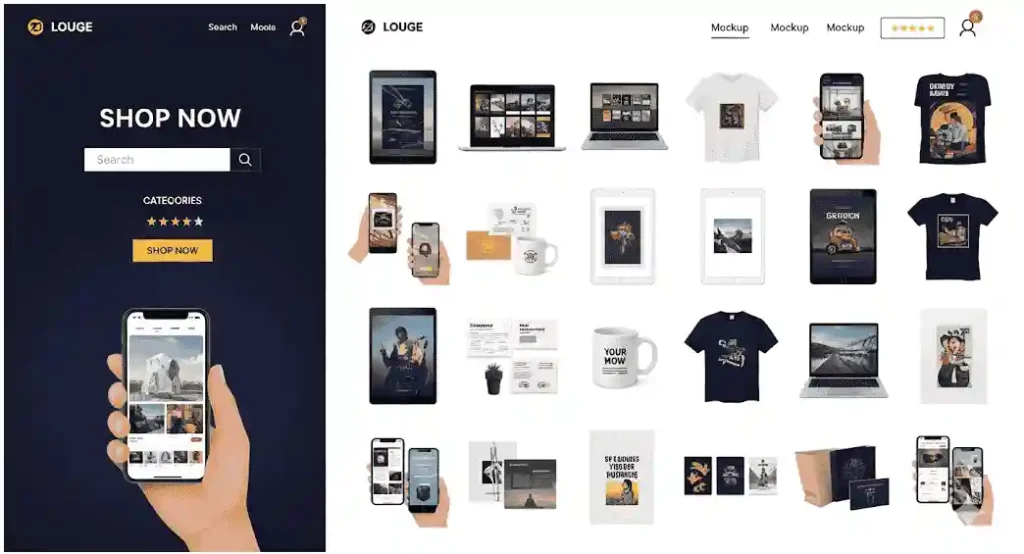
To see how mockups elevate presentation, check out these font mockups from our collection:

Each example shows how fonts can shine when displayed in well-crafted mockups.


7. Tips for Choosing the Right Mockup Tool

  • Start with Free Options: Try free mockups before investing in premium tools.
  • Focus on Your Niche: If you sell fonts, prioritize mockups for posters, books, or apparel.
  • Check Export Quality: Always test output resolution before committing.
  • Look for Time-Saving Features: Bulk editing and template libraries can save hours.

8. Conclusion

Using affordable mockup tools for selling digital designs is a game-changer for designers. Whether you sell fonts, graphics, or templates, mockups help customers connect emotionally with your product. By investing in the right tool, you’ll improve your presentation, boost sales, and stand out in a crowded marketplace.

If you haven’t already, explore mockup options like Placeit, Smartmockups, or Mockup World. Start showcasing your designs in the best light possible!


9. References