Posted on

Triadic Color Combinations Examples: New Create Perfect Harmony in Design

Triadic Color Combinations Examples

Table of Contents

  1. Introduction: Why Color Harmony Matters
  2. What Are Triadic Color Combinations?
  3. The Psychology Behind Triadic Colors
  4. Best Triadic Color Combinations Examples
  5. How to Apply Triadic Colors in Graphic Design
  6. Triadic Colors in Branding and Typography
  7. Showcase: Fonts That Complement Triadic Palettes
  8. Useful Tools and Resources
  9. Conclusion

1. Introduction: Why Color Harmony Matters

Triadic Color Combinations Examples is one of the most powerful tools in design—it communicates emotions, defines brand identity, and influences perception. A well-balanced color palette can turn a simple design into a visually stunning masterpiece. Among the most reliable and creative methods for achieving balance is the Triadic Color Combinations Examples.

In this article, we’ll explore practical Triadic Color Combinations Examples, why they work, and how you can use them in your graphic design projects to achieve vibrant, eye-catching results.

2. What Are Triadic Color Combinations?

A triadic color combination consists of three colors that are evenly spaced around the color wheel. This means they are separated by 120 degrees, creating a perfect visual balance between contrast and harmony.

For example:

  • Red – Blue – Yellow
  • Orange – Green – Purple

Unlike complementary color schemes (which use opposite colors), triadic palettes provide a broader range of hues, making your designs more dynamic while maintaining visual coherence.

According to Canva’s Color Theory Guide, triadic schemes are especially effective in modern branding and web design because they are both bold and balanced.
Triadic Color Combinations Examples

3. The Psychology Behind Triadic Colors

Triadic combinations naturally create a sense of equilibrium. They allow each color to stand out without overwhelming the others. This makes them ideal for projects that need energy and vibrancy while still appearing professional.

  • Red evokes excitement and passion.
  • Blue symbolizes trust and calm.
  • Yellow conveys optimism and warmth.

When used together, these colors create visual interest and emotional harmony—perfect for marketing materials, websites, and social media visuals.

4. Best Triadic Color Combinations Examples

Here are some popular triadic color combinations you can use in your design projects:

1. Red – Blue – Yellow

A classic primary triad, perfect for playful, energetic designs like children’s brands or creative agencies.

2. Orange – Green – Purple

A bold and artistic palette, often used in lifestyle or entertainment branding.

3. Pink – Yellow – Cyan

A modern and youthful combination, great for tech startups or trendy product packaging.

4. Teal – Coral – Mustard

A warm yet sophisticated mix often seen in fashion or interior design visuals.

5. Navy – Gold – Crimson

A luxurious and elegant palette suitable for premium brands and editorial designs.

You can experiment with saturation and contrast levels to adjust the mood of your triadic scheme—keeping one color dominant and the others as accents often creates the best visual balance.

5. How to Apply Triadic Color Combinations Examples in Graphic Design

When using triadic palettes, the key is to maintain balance. Here are a few tips:

  • Pick a dominant color for your main elements.
  • Use the second color for highlights or secondary elements.
  • Reserve the third color for accents, buttons, or calls-to-action.

For web design, tools like Adobe Color Wheel or Coolors can help you generate and test triadic palettes effortlessly.

6. Triadic Color Combinations Examples in Branding and Typography

Triadic color harmony doesn’t only apply to images—it also enhances typography. Using fonts that complement your chosen palette can amplify the mood of your design.

For example:

  • Bold sans-serif fonts work well with vibrant, energetic color schemes.
  • Elegant script or calligraphy fonts pair beautifully with pastel triads.

To see how colors and typography combine beautifully, explore these font mockups from Calligraphy Fonts:

  • Rustte Font – Stylish and rustic, perfect for vintage palettes.
  • Classicly Font – Timeless serif that fits minimalist triadic designs.
  • Overcame Font – Modern and bold, ideal for vibrant color harmony.
  • Southlake Font – Natural and calm, perfect for earthy color triads.
Triadic Color Combinations Examples

7. Showcase: Fonts That Complement Triadic Color Combinations Examples

Typography plays a crucial role in color harmony. Pairing fonts with appropriate color combinations can completely transform a design’s tone.

For instance:

  • A triadic mix of navy, gold, and crimson with Classicly Font evokes sophistication.
  • A bright palette of pink, yellow, and cyan paired with Overcame Font creates a fun, tech-forward vibe.
  • A teal, coral, and mustard triad using Southlake Font offers an organic yet modern feel.

By combining these fonts with triadic color schemes, designers can achieve not just visual appeal but also emotional consistency.

8. Useful Tools and References

To help refine your understanding and create better triadic palettes, explore these useful resources:

9. Conclusion Triadic Color Combinations Examples

Triadic color combinations are a designer’s secret weapon for achieving balance, energy, and vibrancy. They give you flexibility to experiment while ensuring your compositions remain visually harmonious.

Whether you’re working on branding, digital graphics, or packaging, understanding how to use triadic color combinations can elevate your work to a new level of professionalism. Pair them with the right typography—like the beautiful selections available at CalligraphyFonts.net—and your designs will truly stand out.
Posted on

Unlock the Beauty of Double Complementary Color Palettes

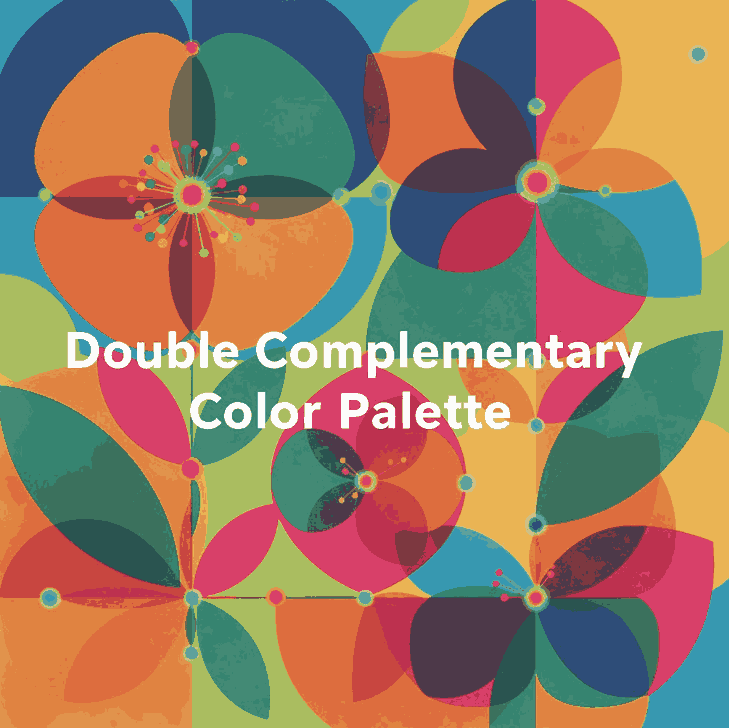
Double Complementary Color Palette

Table of Contents

  1. Introduction: Why Color Harmony Shapes Design
  2. What Is a Double Complementary Color Palette?
  3. The Power of Four: Advantages and Challenges
  4. How to Balance and Use Tetradic Colors
  5. Real Design Applications and Inspiration
  6. Applying Double Complementary Colors to Fonts
  7. Font Mockup Ideas for Designers
  8. Tools to Create Perfect Tetradic Palettes
  9. Final Thoughts and Pro Tips
  10. References

1. Introduction: Why Color Harmony Shapes Design

Colors are more than just decoration — they shape how people feel, perceive, and remember your brand. Whether you’re designing a logo, a web interface, or a font presentation, color harmony determines the impact of your work.

Among various color schemes, the Double Complementary Color Palette (also known as the Tetradic Color Scheme) stands out for its vibrancy and complexity. It offers endless creative possibilities — if you know how to control it.

For type designers and visual creators at CalligraphyFonts.net, mastering this palette helps you craft font mockups that look dynamic yet balanced, bold yet sophisticated.

Double Complementary Color Palette

2. What Is a Double Complementary Color Palette?

A Double Complementary Color Palette uses four colors arranged as two complementary pairs — for example:

  • Blue and orange
  • Green and red

These four colors form a rectangle on the color wheel, offering both contrast and variety.
This palette is also known as a Tetradic scheme because it uses four hues equally spaced around the color wheel.

Unlike monochromatic or analogous palettes, the double complementary setup gives you both warm and cool tones, creating an energetic and visually rich design.

3. The Power of Four: Advantages and Challenges

Advantages

  • Vibrant and versatile — You can express depth and personality in your design using four diverse hues.
  • Perfect for highlights — It allows creative use of accent colors for typography, icons, or buttons.
  • Balanced warm and cool contrast — This keeps visuals dynamic and emotionally balanced.

Challenges

  • Easily becomes overwhelming if all four colors are used equally.
  • Requires careful dominance — One color must take the lead, while others support it.
  • Color conflicts can occur if saturation or brightness levels clash.

To avoid chaos, pick one main color, use one as a secondary tone, and the other two only for highlights or accents.

4. How to Balance and Use Tetradic Colors

Balancing a four-color palette requires both artistic sense and technical planning. Here are practical tips:

  1. Choose a dominant hue.
    This color should cover around 60% of your design (like background or large shapes).
  2. Use secondary hues for support.
    Allocate around 30% for secondary visuals such as borders, icons, or graphic accents.
  3. Reserve the last pair for details.
    Keep them to 10% — perfect for typography effects or hover interactions.
  4. Desaturate or lighten secondary tones.
    This prevents harsh clashes and keeps harmony consistent.
  5. Add neutrals.
    White, gray, or beige spaces calm down the composition and improve readability.
Double Complementary Color Palette

5. Real Design Applications and Inspiration

Tetradic color harmony appears everywhere in digital and print design.
Here are a few ways professionals use it effectively:

  • Branding: A double complementary palette gives brands a dynamic and multidimensional look. For example, a combination of deep blue, orange, red, and green conveys energy and diversity.
  • UI Design: Designers use one color for primary buttons, its complement for hover states, and the second pair for accent borders or illustrations.
  • Poster Design: It’s common in modern poster layouts where one color dominates, and others appear in geometric or text details.

6. Applying Double Complementary Color Palette to Fonts

When it comes to typography and font mockups, this palette offers exciting visual potential — if handled with subtlety.

Try these design principles:

  • Use strong contrast: For example, orange text on a blue background looks bold and readable.
  • Highlight details: Apply the second complementary pair to emphasize swashes, ligatures, or shadows.
  • Add motion: Use color gradients or animated reveals that transition between complementary pairs.
  • Stay consistent: Don’t use all four colors in equal proportion — fonts must remain legible above all.

Combining color mastery with your custom fonts helps each design feel professional and intentionally artistic.

7. Font Mockup Ideas for Designers

Here are mockup ideas using your own fonts, designed to showcase how the double complementary palette enhances your font products:

  • Rostia Font — Use a deep blue base with orange lettering for a modern bold headline.
  • Jaycee Looks Font — Try muted red for text with soft green accents in background icons.
  • Creatoria Font — Combine warm and cool gradients for vibrant typographic posters.
  • Glitchy Font — Experiment with neon versions of double complementary hues for a futuristic vibe.

These examples demonstrate how color theory can elevate the value of your font designs and attract attention in marketing visuals or product previews.

8. Tools to Create Perfect Tetradic Double Complementary Color Palette

Designers don’t need to guess colors anymore — here are powerful free tools to experiment with your palette ideas:

  • Adobe Color Wheel – Generate tetradic palettes with precision.
  • Coolors.co – Save and test endless color combinations.
  • Paletton – Offers built-in “tetradic” mode for easy visualization.
  • Khroma AI – Uses AI to create harmonious palettes based on your preferences.
  • Viz Palette – Preview how your colors look on different backgrounds or charts.

Each of these tools helps refine your color combinations to achieve visual balance and emotional depth.

9. Final Thoughts and Pro Tips Double Complementary Color Palette

The Double Complementary Color Palette is a designer’s secret weapon — powerful, flexible, but demanding discipline.
Used wisely, it can create unforgettable branding, sleek typography, and visually rich layouts.

Pro Tips Recap:

  • Pick one dominant hue — let others support it.
  • Use neutral backgrounds for readability.
  • Reduce saturation when using all four hues together.
  • Apply the 60–30–10 balance rule.
  • Test color accessibility and contrast before finalizing your palette.

When paired with your signature fonts from CalligraphyFonts.net, these color strategies will help your designs stand out — bold, professional, and timeless.

10. References

Posted on

Web Design Innovations, New Tools & Trends for 2025

Web Design Innovations Tools

Table of Contents

  1. Introduction: Why Innovation Matters in Web Design
  2. Key Trends Driving Web Design in 2024–2025
    • 2.1 AI & Machine Learning in Design
    • 2.2 Dark Mode, Fluid Layouts & Accessibility
    • 2.3 Microinteractions, Motion & Animation
    • 2.4 Bold Typography & Experimental Fonts
    • 2.5 3D, Immersive & WebXR Elements
    • 2.6 No-code / Low-code & Generative Design
  3. Tools Powering These Innovations
    • 3.1 Figma & AI-augmented design features
    • 3.2 Webflow, Framer & visual dev platforms
    • 3.3 Spline, Three.js & 3D / WebXR tools
    • 3.4 Tools for Microinteractions & Animation
    • 3.5 No-code / generative tools & AI assistants
  4. How Font Designers Can Ride the Trend Wave
  5. Mockup Examples with Our Fonts
  6. Tips to Stay Ahead in Web Design Innovation
  7. Conclusion & Call to Action
  8. References

1. Introduction: Why Matters in Web Design Innovations Tools

Web design is not static — it evolves with technology, user expectations, and creative exploration. The phrase web design innovations tools trends isn’t just buzzwords — it’s the lifeline for designers who want to stay relevant, efficient, and compelling.

For a site selling fonts and design assets (like yours), aligning your visual language, tools, and mockups with modern web trends is not optional — it’s strategic. In this article, we dive into the trends shaping 2024–2025, the tools enabling them, and how you as a font designer can integrate them into your visual offerings.

Web Design Innovations Tools

2. Key Trends Driving Web Design in 2024–2025

2.1 AI & Machine Learning in Web Design Innovations Tools

AI is no longer future speak — it’s here. Tools now generate images, themes, layouts, captions, and even micro-animations. Web design is shifting toward AI-assisted workflows that speed iteration and spark creativity.

Adaptive interfaces, personalized content, predictive UI elements — these are becoming integral as websites become more context-aware.

2.2 Dark Mode, Fluid Layouts & Accessibility

Dark mode continues its surge due to eye comfort, energy savings, and aesthetic appeal.

Another core movement is toward fluid layouts — sites that don’t rely on rigid breakpoints but scale proportionally across devices.

Accessibility is also front and center: inclusive color contrast, keyboard navigation, alt text, and responsive design — designers are treating it as fundamental, not optional.

2.3 Microinteractions, Motion & Animation

Subtle animations, hover effects, scroll transitions, cursor trails, loading micro-animations — these small touches bring delight and engagement. Innovation lies in making them lightweight, intuitive, and purposeful.

Also, textual animations and expressive transitions are rising, especially when typography is central in your design.

2.4 Bold Typography & Experimental Fonts

Typography is reclaiming its power in web design. Bold, expressive, variable fonts, kinetic type, layered type effects — all part of the trend to make text the hero.

In this context, font creators and sellers have a golden opportunity: offering fonts designed for web use (variable fonts, WOFF2), paired with innovative layouts, gives your customers creative edge.

2.5 3D, Immersive & WebXR Elements

The line between 2D websites and immersive experiences is blurring. Tools like Spline, Three.js, WebXR allow embedding 3D models, interactive scenes, or parallax spaces directly in the browser — without heavy plugins.

When used sparingly, 3D elements can enhance storytelling, product demos, or hero sections — if they’re performant and optimized.

2.6 No-code / Low-code & Generative Web Design Innovations Tools

Designers increasingly leverage visual dev platforms to skip manual coding. Webflow, Framer, Wix Studio, and others let you build with visual tools but output production-ready code.

Generative design tools help automatically generate layouts, themes, or variations — this trend accelerates experimentation. Paired with AI, you can iterate fast and test design hypotheses in minutes.

3. Tools Powering These Web Design Innovations Tools

Here are some tools at the forefront of the web design innovations tools trends:

3.1 Figma & AI-augmented design features

Figma remains central in collaborative UI/UX design. Its evolving support for AI agents, plugin ecosystem, and design systems make it a hub for experimentation.

3.2 Webflow, Framer & Visual Dev Platforms

Webflow merges visual design with code, enabling designers to build full websites. Framer extends interactive and animation capabilities.

3.3 Spline, Three.js & 3D / WebXR Tools

For immersive, 3D experiences in the browser, Spline is gaining ground as a designer-friendly 3D platform. Three.js is a powerful JavaScript library for custom 3D interactions.

3.4 Tools for Microinteractions & Animation

Tools and libraries like Lottie, GSAP, Motion One, Framer Motion help designers add performant animations. These integrate seamlessly with modern frameworks and visual tools.

3.5 No-code / Generative Tools & AI Assistants

Builder tools that accept design prompts and output websites (or UI kits) are trending. Platforms like Relume, Readymag, Pineapple Builder (AI-based) exemplify the shift toward prompt-to-site workflows.

4. How Font Designers Can Ride the Trend Wave

As someone running a font business, here’s how you can align with web design innovations:

  • Offer Web-optimized font formats: variable fonts, WOFF2, etc.
  • Showcase fonts in new contexts: 3D, immersive, dark mode, motion typography.
  • Create mockups tailored to modern trends: microanimation, hover effects, interactive samples.
  • Bundle trends-based templates: e.g. Webflow + font, Figma UI kits.
  • Educate customers: show tutorials or demos of your fonts in trending web designs.
Web Design Innovations Tools

5. Mockup Examples with Our Fonts

To illustrate how your fonts can shine in modern web designs, here are some examples you can build mockups for:

  • Aeromove Font — Use in bold, dynamic headers or hero text with subtle motion.
  • Technophile Font — Great for futuristic, tech-themed layouts with 3D or neon accents.
  • Holters Font — Good for bold statements, overlays, or title layers in immersive scenes.
  • Catcalling Font — A more expressive or stylized font, suited to creative or fashion web themes.

You can combine these fonts in mockups that show hover reveals, animated type, dark mode toggles, or 3D elements — demonstrating to clients how they behave in next-gen web contexts.

6. Tips to Stay Ahead in Web Design Innovations Tools

  • Follow trend reports (e.g. from Elementor, Hostinger) to spot shifts early.
  • Prototype fast & test — use no-code tools to explore new ideas before heavy dev.
  • Optimize performance first — fancy animations shouldn’t slow your site.
  • Stay accessible — always maintain contrast, navigation clarity, and keyboard usability.
  • Offer evolving mockups — update your font demo pages to reflect current trends.

7. Conclusion & Call to Action Web Design Innovations Tools

Web design innovations tools trends are reshaping how we build, deliver, and experience the web. For designers and font vendors, these shifts offer opportunity — if you adapt. By combining modern tools, immersive elements, motion, and bold typography, you make your fonts relevant in the next era of digital design.

Call to Action: Jika kamu mau, saya bisa bantu buat mockup template web (Figma/Webflow) dengan fontmu agar bisa langsung dipakai oleh klien. Mau saya bantu susun?

8. References

Posted on

Best Google Slides Free Templates for Stunning Presentations

Google Slides free templates

Table of Contents

  1. Introduction: Why Presentation Design Matters
  2. What Makes Google Slides So Popular
  3. Benefits of Using Free Google Slides Templates
  4. Top Features to Look for in a Template
  5. 5 Best Google Slides Free Templates You Can Try
  6. Using Fonts to Enhance Your Slides
  7. Conclusion: Elevate Every Presentation

1. Introduction: Why Presentation Design Matters

In today’s visually-driven world, a well-designed presentation can make or break your message. Whether you’re pitching a business idea, teaching a class, or presenting creative work, your slides speak volumes about your professionalism and attention to detail.

Fortunately, with Google Slides free templates, you don’t have to be a design expert to create visually engaging and professional-looking presentations. These templates allow you to focus on content while maintaining a polished, cohesive look.

2. What Makes Google Slides So Popular

Google Slides has become a favorite among students, professionals, and designers for several key reasons:

  • Cloud-based collaboration — Multiple users can edit in real-time.
  • Cross-device accessibility — Access and edit your presentations anywhere.
  • Easy customization — Modify layouts, add animations, and change colors effortlessly.
  • Completely free — Unlike premium design software, Google Slides is free to use with your Google account.

It’s this perfect mix of simplicity and flexibility that makes Google Slides a go-to presentation platform for millions.

Google Slides free templates

3. Benefits of Using Free Google Slides Templates

If you’ve ever started a blank presentation and felt overwhelmed, free templates are your secret weapon. They help you:

  • Save time by giving you ready-made layouts.
  • Ensure consistency in typography and colors.
  • Look professional, even without advanced design skills.
  • Adapt easily — from academic decks to business pitches.

Many websites offer high-quality Google Slides free templates that can transform your slides instantly.

4. Top Features to Look for in a Google Slides free templates

When choosing a free Google Slides template, consider these essential features:

  • Modern visual style: Clean, minimalist designs tend to perform best.
  • Versatile layouts: Include title, content, and image-based slides.
  • Easy font integration: Ensure compatibility with your chosen typefaces.
  • Custom color palettes: Look for templates that allow brand consistency.
  • Device optimization: Templates that display well across desktop and mobile.

These features ensure your presentation not only looks great but also communicates effectively.

5. 5 Best Google Slides Free Templates You Can Try

Here are five top-rated free templates you can explore today:

  1. Minimal Pitch Deck Template – Sleek and clean design perfect for startups.
  2. Education Modern Template – A vibrant design ideal for teachers or students.
  3. Creative Portfolio Template – Best for designers and freelancers.
  4. Corporate Business Deck – Professional layouts for company presentations.
  5. Dark Mode Template – Trendy black-based slides with a bold aesthetic.

Each of these templates can be fully customized using Google Slides and styled with elegant fonts to create presentations that stand out.

6. Using Fonts to Enhance Your Google Slides free templates

Typography plays a huge role in presentation design. A well-chosen font gives your slides personality and clarity. If you want to make your slides more creative and stylish, consider pairing your Google Slides template with premium fonts like:

  • Cyranie Zalie Font – Elegant handwritten font perfect for creative slides.
  • Holters Font – A bold display font for impactful titles.
  • Workday Font – Clean sans serif for professional and minimalist layouts.

When combined with the right Google Slides template, these fonts can dramatically enhance readability and brand consistency.

Google Slides free templates

7. Conclusion: Elevate Every Presentation Google Slides free templates

Creating impressive presentations doesn’t have to be expensive or time-consuming. With Google Slides free templates, anyone can design engaging visuals that capture attention. Whether you’re presenting to clients, colleagues, or students, the right combination of templates and fonts ensures your message is delivered effectively.

Explore creative fonts from Calligraphy Fonts to give your slides a unique touch and stand out from ordinary presentations.

References

Posted on

New Best Online Logo Animation Software for Creative Brands

Online Logo Animation Software

Table of Contents

  1. Introduction: Why Logo Animation Matters
  2. Benefits of Using Online Logo Animation Software
  3. Top Online Logo Animation Tools in 2025
    • 3.1 Renderforest
    • 3.2 Animaker
    • 3.3 Canva Pro
    • 3.4 Motionden
    • 3.5 Adobe Express
  4. How to Choose the Right Logo Animation Software
  5. Tips for Creating a Stunning Animated Logo
  6. Enhance Your Animated Logo with Premium Fonts
  7. Conclusion
  8. References

1. Introduction: Why Logo Animation Matters

In today’s fast-paced digital world, Online Logo Animation Software is no longer just an option — it’s a powerful way to tell your brand story. A static logo can represent your identity, but an animated one brings it to life. Motion attracts attention, engages users, and leaves a lasting impression.

From YouTube intros to TikTok ads, animated logos have become a visual signature of modern branding. Thankfully, you don’t need to be a professional animator to create one. With the rise of online logo animation software, anyone can design a professional logo animation in minutes.

2. Benefits of Using Online Logo Animation Software

Using cloud-based tools to animate your logo offers several advantages:

  • Ease of use: Most platforms are drag-and-drop based with ready-to-use templates.
  • Cost-effective: No need for expensive software like After Effects.
  • Cloud storage: Access your projects anytime, anywhere.
  • Time-saving: Create high-quality animations in minutes.
  • Customization: Control motion speed, colors, typography, and more.

Whether you’re a small business owner or a professional designer, these platforms help you stand out in a visually crowded space.

Online Logo Animation Software

3. Top Online Logo Animation Tools in 2025

3.1 Renderforest

Renderforest is one of the most popular logo animation makers online. It offers hundreds of customizable templates with cinematic effects. You can easily upload your logo, select a style, and render your animation in HD.

3.2 Animaker

Animaker is a favorite among digital marketers. It’s designed for people with no animation experience but delivers professional-quality output. The platform supports both 2D and 3D logo animation and includes brand kits for consistency.

3.3 Canva Pro

Canva Pro isn’t just for social media graphics — it also offers animated logo templates with smooth transitions and effects. The drag-and-drop editor makes it easy to combine motion, sound, and text.


3.4 Motionden

Motionden specializes in creating video intros and animated logos. It features a large collection of modern, dynamic templates. You can export your project directly to YouTube or social platforms.


3.5 Adobe Express

From the creators of Photoshop and Illustrator, Adobe Express provides a sleek interface and professional templates for animated logos. It’s ideal for users who want Adobe’s quality but with less complexity.

4. How to Choose the Right Logo Animation Software

When selecting your animation tool, consider the following factors:

  • Ease of Use: A user-friendly interface helps you create faster.
  • Template Variety: Choose platforms with flexible and modern templates.
  • Export Options: Look for HD or 4K export capabilities.
  • Brand Integration: Check if the software supports your brand’s font and color palette.
  • Price and Subscription: Ensure the plan fits your budget and long-term needs.

5. Tips for Creating a Stunning Animated Online Logo Animation Software

Here are some expert tips to make your logo animation unforgettable:

  • Keep it short: Aim for 3–5 seconds of animation.
  • Focus on storytelling: Show motion that reflects your brand’s personality.
  • Match sound effects: Sync motion with subtle audio cues.
  • Use brand fonts: Consistency strengthens recognition.
  • Test across devices: Ensure it looks good on both desktop and mobile.
Online Logo Animation Software

6. Enhance Your Animated Online Logo Animation Software with Premium Fonts

Typography plays a major role in how your logo feels. Choosing a font that complements your animation can transform a simple logo into a memorable one.

Here are a few font recommendations from our collection to help your logo animation shine:

  • Cyranie Zalie Font — Elegant and modern, perfect for luxury or fashion brands.
  • Holters Font — A bold display font ideal for tech or gaming animations.
  • Workday Font — Clean and versatile, great for minimalist animated logos.

Combining smooth motion with expressive typography creates a truly dynamic visual identity.

7. Conclusion Online Logo Animation Software

Animated logos are more than just moving graphics — they’re a statement. By using the right online logo animation software, you can give your brand a unique edge that captures attention and builds recognition.

Whether you’re just starting out or refining your brand visuals, experimenting with animation and premium fonts can elevate your creative game. With tools like Canva Pro, Renderforest, and Adobe Express, creating professional animations has never been easier.

8. References

To ensure this article’s accuracy and depth, here are some reliable sources used for research:

Posted on

Boost New Creativity in 2025 with Adobe Illustrator Productivity Plugins

Adobe Illustrator Productivity Plugins

Table of Contents

  1. Introduction
  2. Why Productivity Plugins Matter for Font Designers
  3. Top Illustrator Plugins to Boost Workflow
    • 3.1 Astute Graphics Suite (VectorScribe, VectorFirstAid, etc.)
    • 3.2 Fontself Maker
    • 3.3 Select Menu
    • 3.4 SymmetryWorks
    • 3.5 Magic Exporter & Other Export Helpers
    • 3.6 Bonus: Cleanup / Nudge / Concatenate / ToolShed
  4. How to Use These Plugins in Font Mockups
  5. Tips for Choosing & Managing Plugins
  6. Case Study: Mockups with CalligraphyFonts
  7. Conclusion & Call to Action
  8. References

1. Introduction

In the world of vector design and type design, time is precious. Every minute saved on repetitive or tedious tasks can be reinvested into creativity, refinement, or exploring new ideas. That’s where Adobe Illustrator Productivity Plugins shine.

For font designers, these Adobe Illustrator Productivity Plugins aren’t just nice-to-have—they can streamline glyph cleanup, path editing, batch exports, symmetry generation, and more. In this article, we’ll explore the best productivity plugins for Illustrator, how they help in a font-oriented workflow, and how you can integrate them into your mockups and design process.

2. Why Productivity Plugins Matter for Font Designers

Even though Illustrator is powerful by itself, certain tasks remain friction points—like cleaning up messy vector artwork, splitting paths, aligning anchors, exporting multiple formats, or generating symmetric ornamentation. Plugins extend Illustrator’s native capabilities, allowing you to:

  • Automate repetitive tasks
  • Increase precision in path manipulation
  • Speed up export workflows (especially for marketing / font previews)
  • Add specialty tools not built into Illustrator
  • Reduce manual errors

Din Studio’s article on essential Illustrator plugins highlights how these extensions “improve productivity by providing significantly more efficient tools for some common tasks.”
Also, Ziflow’s list of “19 best Illustrator plugins” includes many productivity and collaboration tools that embed directly into the Illustrator workflow.

Adobe Illustrator Productivity Plugins

3. Top Adobe Illustrator Productivity Plugins to Boost Workflow

Berikut beberapa plugin unggulan yang sering disebut dalam ulasan desain sebagai pengubah produktivitas:

3.1 Astute Graphics Suite (VectorScribe, VectorFirstAid, etc.)

Astute Graphics adalah salah satu pemain besar dalam plugin Illustrator.
Beberapa modul penting:

  • VectorScribe: Smart removal of unnecessary points, dynamic corner tools, path extension, precise measurements.
  • VectorFirstAid: Membersihkan vektor (fix stray anchors, broken paths, text to outlines) yang sering muncul ketika impor desain kompleks.
  • Phantasm: Mengatur warna, efek vektor seperti halftone dan koreksi warna langsung dalam Illustrator.
  • ColliderScribe, ToolShed, Cleanup Tools, Concatenate, Nudge Panel: Beragam utilitas kecil tapi sangat menghemat waktu.

Banyak desainer menyatakan bahwa Astute plugins “shaved time off my workflow and opened new geometric doors.”
Di komunitas Adobe, plugin seperti VectorScribe, InkScribe, dan Reform disebut sebagai “sangat membantu dalam pengeditan path & spline.”

3.2 Fontself Maker

Fontself Maker memungkinkan kamu membuat font (OTF / SVG) langsung dari bentuk vector / lettering di Illustrator.
Fitur utamanya:

  • Drag & drop bentuk glyph
  • Ligatures & alternates
  • Font dengan warna (OpenType-SVG)

Bagi pembuat font, ini menghilangkan kebutuhan berpindah aplikasi (Illustrator → Font software).

3.3 Select Menu

Select Menu memperluas menu Select > Object dengan 18 fungsi tambahan — seperti memilih closed paths, open paths, compound paths, dll.
Plugin ini sederhana, gratis, dan sangat membantu ketika bekerja dengan dokumen kompleks yang berisi ribuan objek.

3.4 SymmetryWorks

Plugin ini membantu membuat pola simetris (mirror, repeat) secara otomatis. Di artikel Din Studio, disebut sebagai plugin yang cocok untuk wallpaper atau desain repeating pattern.
Sangat berguna untuk membuat dekorasi, borders, motif hias dalam tampilan font mockup.

3.5 Magic Exporter & Other Export Helpers

Plugin seperti Magic Exporter memungkinkan kamu memilih objek atau layer tertentu lalu langsung diekspor ke beberapa format (PNG, SVG) dengan otomatis.
Plugin semacam ini sangat berguna ketika kamu memiliki mockups font dalam berbagai variasi ukuran dan format.

3.6 Bonus: Cleanup / Nudge / Concatenate / ToolShed

Plugin-plugin utilitas kecil sering terlupakan tapi sangat berguna:

  • Concatenate: Gabungkan path terpisah secara otomatis jika endpoints dekat.
  • Cleanup Tools: Memperbaiki segment, menyederhanakan anchor, menjaga transisi halus.
  • Nudge Panel: Menggeser objek, dash, pattern fills dengan kontrol lebih halus.
  • ToolShed: Koleksi utilitas seperti offset open paths, duplicate removal, note panel, dan lainnya.

Bersama plugin-plugin utama di atas, kamu bisa sangat mengurangi kerja manual.

4. How to Use These Adobe Illustrator Productivity Plugins in Font Mockups

Untuk font designers, penggunaan plugin bukan hanya di fase perancangan glyph, tetapi juga dalam membuat mockup visual. Berikut beberapa contoh pemakaian:

  • SymmetryWorks → buat border dekoratif ulang tanpa menggambar manual
  • VectorScribe / Cleanup → setelah impor vektor motif atau background, bersihkan path agar lebih ringan
  • Magic Exporter → ekspor mockup font dalam berbagai ukuran (web preview, social media, pp) sekaligus
  • Select Menu → pilih objek tertentu (mis. hanya strokes tanpa fills) untuk di-layering
  • Fontself → jika kamu juga ingin menyajikan font test langsung sebagai glyph dalam mockup

Kamu bisa mencoba memadukan contoh font dari katalogmu:

Dengan plugin di atas, kamu bisa membuat mockup font dalam latar tematik Halloween, vintage, modern, atau motif custom dengan lebih efisien.

Adobe Illustrator Productivity Plugins

5. Tips for Choosing & Managing Adobe Illustrator Productivity Plugins

  • Mulai dari kebutuhan nyata: Identifikasi bagian mana dari workflow yang paling memakan waktu, lalu cari plugin untuk itu.
  • Kompatibilitas & pembaruan: Pastikan plugin kompatibel dengan versi Illustrator kamu. Plugin dari Astute Graphics misalnya rutin update.
  • Gunakan trial dulu: Banyak plugin premium menawarkan uji coba. Coba dulu sebelum beli.
  • Jangan terlalu banyak: Plugin berlebihan bisa membebani memori atau memperlambat startup Illustrator.
  • Organisasi & backup: Simpan plugin eksternal di folder khusus dan backup pengaturan / preset agar tidak hilang saat reinstall.
  • Pantau performa: Jika file jadi lambat, disable plugin tertentu untuk melihat pengaruhnya.

6. Case Study: Mockups with Adobe Illustrator Productivity Plugins CalligraphyFonts

Misalnya kamu ingin membuat mockup font Annandale untuk kampanye Halloween:

  1. Gunakan SymmetryWorks untuk membuat border ornament horor yang berulang.
  2. Impor motif vector eksternal, lalu jalankan VectorFirstAid / Cleanup agar path rapi.
  3. Atur komposisi, lalu ekspor menggunakan Magic Exporter dalam format PNG & SVG sekaligus.
  4. Bila kamu ingin sertakan preview glyph, gunakan Fontself Maker untuk mengubah contoh huruf langsung menjadi font (uji coba).
  5. Gunakan Select Menu untuk memilih elemen dekoratif tertentu dan memodifikasinya secara cepat dalam mockup.

Dengan alur ini, kamu hemat waktu dan hasil mockup tampil profesional serta konsisten.

7. Conclusion & Call to Action Adobe Illustrator Productivity Plugins

Adobe Illustrator Productivity Plugins bukan hanya alat tambahan — mereka menjadi bagian vital dari workflow desain modern, khususnya bagi pembuat font dan mockup visual. Dengan plugin-plugin seperti Astute Graphics suite, Fontself Maker, Select Menu, SymmetryWorks, dan alat ekspor produktif, kamu bisa mempercepat proses, menjaga kualitas, dan menghasilkan mockup yang menarik lebih cepat.

Kalau kamu tertarik, cobalah dulu satu atau dua plugin dalam daftar di atas, lihat seberapa banyak waktu yang bisa kamu hemat. Lalu, langkah berikutnya: integrasikan ke dalam template mockup fontmu, dan pantau konversi dari visual yang lebih halus.

Call to Action: Kalau kamu ingin saya bantu susun template mockup khusus plugin + tema (misalnya Halloween, luxury, vintage) untuk katalog fontmu, tinggal bilang ya — saya siap bantu!

References

  1. Din Studio — “7 Essential Adobe Illustrator Plugins Every Designer Needs”
  2. Ziflow — “19 best Adobe Illustrator plugins for designers and agencies”
  3. 99designs — “5 Best Productivity Plugins for Adobe Illustrator”
  4. Astute Graphics official site — “Astute Graphics plugin suite”
Posted on

Modern Halloween Color Combinations That New Inspire Bold Design

Modern Halloween Color Combinations

Table of Contents

  1. Introduction
  2. Why Color Matters for Halloween Designs
  3. Trend Signals & Influences for 2024–2025
  4. Top 6 Modern Halloween Color Combinations
    • 4.1 Deep Black + Neon Accents
    • 4.2 Muted Neutrals + Subtle Spooky Highlight
    • 4.3 Jewel Tones & Rich Hues
    • 4.4 Pastel Horror (Pinkoween & Ghostly Shades)
    • 4.5 Earthy & Organic Halloween Tones
    • 4.6 Monochromatic with a Splash
  5. How to Use These Palettes in Your Font Mockups
  6. Tips for Balancing Readability & Atmosphere
  7. Case Study Mockup Examples
  8. Final Recommendations
  9. References

1. Introduction

Halloween design has evolved. Gone are the days when only black and orange ruled every spooky poster or invitation. Today, designers are experimenting with Modern Halloween color combinations that bring sophistication, surprise, and a fresh twist to spooky aesthetics.

If you’re a font designer, marketer, or visual creator, the palette you choose can elevate font mockups, branding, and campaign visuals. This guide helps you explore trending color combos, apply them thoughtfully, and present your fonts in a way that fits the Halloween mood and stands out.

Modern Halloween Color Combinations

2. Why Color Matters for Modern Halloween Color Combinations

Color is fundamental in conveying mood, tone, and readability. For Halloween:

  • Mood & Emotion: Dark hues, contrasts, and accent colors set spooky or ethereal atmospheres.
  • Legibility: Fonts need proper contrast — too low contrast makes them unreadable, especially in promotional visuals.
  • Branding & Uniqueness: Using unexpected color combos helps your designs stand out from the flood of “orange + black” visuals.

When your font mockups adopt a striking palette, potential buyers can better imagine how they’ll use your font in real seasonal designs.

3. Trend Signals & Influences for 2024–2025

Design trend reports and Halloween decor insights point to some shifting color directions:

  • Dark + Neon accents: Platforms project that combining deep black with neon purples, greens, or orange creates a “mysterious yet modern” feel.
  • “Spooky-Chic” aesthetics: According to Forbes, while orange and black still play a role, dark burgundy, charcoal gray, and upscale accent colors are on the rise in Halloween décor.
  • Unusual / unexpected combinations: Din Studio’s article highlights how designers are now adding pastel, neon, or monochrome accents to classic Halloween palettes.
  • Soft & neutral Halloween: Trends adopt muted or neutral tones like cream, taupe, dusty rose, or sage instead of prescriptive orange + black.
  • “Pinkoween” & pastel horror: Some decorators are embracing blush, light purples, and metallics for a whimsical Halloween twist.

So, the stage is set: Halloween visuals that balance darkness and elegance, moodiness and surprise.

4. Top 6 Modern Halloween Color Combinations

4.1 Deep Black + Neon Accents

Palette idea: Jet black background + electric purple, neon green, or hot orange accents.
Why it works: The dark base gives a spooky canvas; neon adds energy and contrast without losing the Halloween feel.
Use case: Titles, flourishes, glowing outlines behind your script fonts.

4.2 Muted Neutrals + Subtle Spooky Highlight

Palette idea: Cream, soft gray, taupe + deep charcoal or muted purple.
Why it works: Elegant, wearable Halloween—fitting for designs that should carry beyond only one season.
Use case: Font name cards, website banners, classically styled posters with a whisper of spook.

4.3 Jewel Tones & Rich Hues

Palette idea: Burgundy, emerald, midnight blue, plum + black or dark accent.
Why it works: Luxurious mood with depth. It plays into “Gothic glamor” trends in decor.
Use case: Header visuals, merchandise mockups where font appears in a premium context.

4.4 Pastel Horror (Pinkoween & Ghostly Shades)

Palette idea: Blush pink, lavender, mint, white + soft gray or muted black accent.
Why it works: It surprises, softens the brutal edge, and aligns with emerging “Pinkoween” movements.
Use case: Feminine Halloween themes, invitations, or when you want contrast but gentle vibes.

4.5 Earthy & Organic Halloween Tones

Palette idea: Rust, terracotta, olive, muted gold + deep brown or charcoal.
Why it works: It feels grounded, seasonal, and connects to nature and harvest tones.
Use case: Autumn-themed layouts, wreath visuals, natural texture backgrounds.

4.6 Monochromatic with a Splash

Palette idea: Shades of a single color (e.g. grays or purples) + small highlight (like orange or lime).
Why it works: Minimal but intentional — you maintain harmony yet still draw the eye to accent details.
Use case: Lettering-focused mockups where the font is center stage, with just a flicker of accent to highlight.

Modern Halloween Color Combinations

5. How to Use These Palettes in Your Font Mockups Modern Halloween Color Combinations

To present your fonts powerfully with these color combos:

  • Background & Foreground pairing: If your font is light (white, pale), use darker backgrounds; for darker fonts, use lighter or muted backings.
  • Accent for emphasis: Use neon or hot accent colors on small decorative elements (borders, drop shadows, flourishes), not on body text.
  • Text shadows & outline glows: Slight glows in accent color can boost readability when placed against darker areas.
  • Gradient overlays: A subtle gradient from dark to accent can energize a flat layout.
  • Texture & overlays: Use noise, scratch textures, or subtle grunge overlays in darker tones to enhance atmosphere without overwhelming.

By applying these combos thoughtfully, your font mockups become more than specimens — they become immersive design scenes.

6. Tips for Balancing Readability & Atmosphere

  • Contrast is king: Always test readability. Even if a color is trendy, if text vanishes, it’s useless.
  • Limit your palette: Stick to 3–4 primary tones. Too many competing colors dilute the effect.
  • Use accent sparingly: Neon or bold colors should pop, not dominate.
  • Fallback safe zones: Use solid color backgrounds behind text boxes, or semi-opaque overlays.
  • Test across devices: Some colors shift in brightness on mobile or printed media — preview accordingly.

7. Case Study Mockup Examples Modern Halloween Color Combinations

Here are font examples you can integrate into your Halloween palette mockups:

Example mockup ideas:

  • Use Killer Wings in white or pale lavender on deep black + neon violet backdrop.
  • Show Rustte over a rust + olive gradient with textured overlay.
  • Present Westerners in vintage cream + taupe + muted black combo, framed with subtle Halloween motifs.
  • Use Justice Warrior in rich burgundy on a dark, moody background, with accent glints of metallic gold.

These mockups help customers visualize your fonts in real, usable Halloween designs.

8. Final Recommendations Modern Halloween Color Combinations

  • Start with one of the six palette directions above.
  • Always test contrast and readability before finalizing.
  • Keep your mockups aligned: use consistent accent placements across visuals.
  • Update your seasonal catalog early—designers and marketers begin Halloween planning well ahead.
  • Track what color combos resonate (which mockups convert best) and iteratively adjust.

When you pair your calligraphy and script fonts with a modern, surprising palette, you offer both aesthetic novelty and functional usability. That’s the sweet spot that draws in designers, content creators, and buyers.

9. References

  1. Din Studio2024 Halloween Design Trends: A Fusion of Spooky and Stylish
  2. Attype StudioHalloween Design Trends 2025: Fresh Inspiration
  3. Forbes Halloween Decor Goes Upscale With ‘Spooky-Chic’ Trend
  4. Better Homes & Gardens6 Halloween Decor Trends That Will Be Huge in 2024
  5. The SpruceHalloween Decor Doesn’t Have to Be Orange and Black (Pinkoween)
Posted on

Unlock Canva Pro: The Guide to Smarter, Faster Design

Canva Pro Pricing Upgrade

Table of Contents

  1. Introduction
  2. Canva’s Pricing Structure in 2025
  3. Key Features You Get with Canva Pro
  4. Free vs Pro: What You Gain
  5. Why Upgrade? Return on Creative Investment
  6. How Canva Pro Supports Font & Design Entrepreneurs
  7. Showcase Fonts using Canva Pro + Mockups
  8. Final Verdict
  9. References

1. Introduction

If you’re designing, branding, or selling fonts (like us), you may wonder whether upgrading to Canva Pro Pricing Upgrade is a worthwhile decision. The phrase “Canva Pro pricing upgrade” captures this exact dilemma for many creatives. With Canva becoming more feature-rich and AI-driven, the question isn’t simply “Can I afford Pro?” but rather “Will Pro help me scale, save time, or increase revenue?”

In this article, we break down what you actually get with Canva Pro, compare it against the free plan, and argue when the upgrade makes sense—especially for font creators, designers, and small creative businesses.

Canva Pro Pricing Upgrade

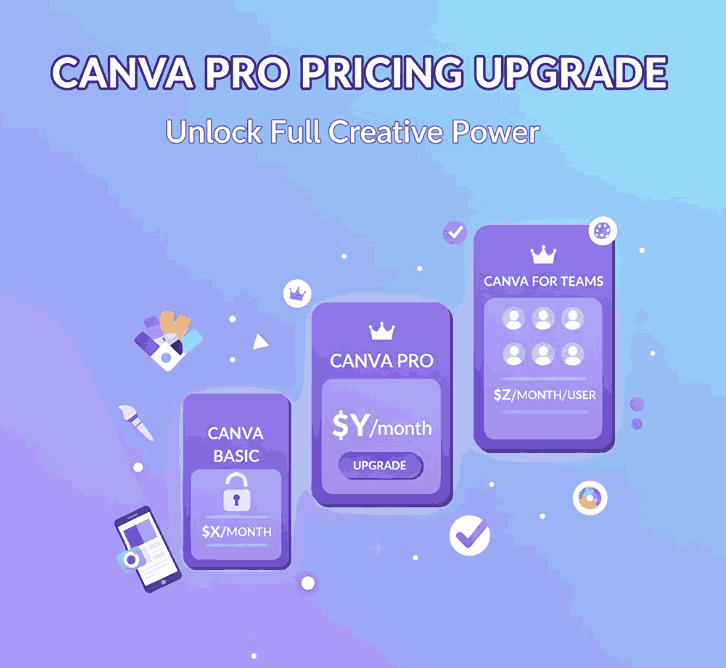
2. Canva’s Pricing Structure in 2025

Let’s begin with the numbers. According to Canva’s official pricing page, Canva offers multiple tiers including Free, Pro, Teams, and Enterprise.

External sources confirm that Canva Pro is priced around USD 12.99/month or USD 119.99/year (varies by region).
Moreover, Canva now heavily leans into AI enhancements and generative tools (Magic Studio, etc.), which feed into justification for pricing, especially for business/teams users.

Note: Canva sometimes adjusts regional pricing, and recently its Teams plan faced steep increases owing to AI feature rollouts.

3. Key Features You Get with Canva Pro

Upgrading unlocks a suite of advanced features not present (or only limited) in the free plan. Some of the most compelling ones:

  • Access to Premium Content Library — Over 100 million photos, illustrations, videos, audio assets included without extra cost.
  • Brand Kit & Font Uploads — You can define brand colors, logos, and upload your custom fonts to maintain consistency.
  • Background Remover Tool — One-click or automatic background removal for images, useful for product mockups.
  • Magic Resize / Reformatting Tools — Instantly adapt a design to different dimensions (Instagram, stories, posters).
  • Advanced Export Options — Export in SVG, transparent PNG, animated GIF/MP4 (depending on design).
  • Larger Storage & Folders — Instead of 5 GB (free), you often get 1 TB in Pro.
  • Generative AI Tools — Higher usage quotas of Magic Write, image generation, text-to-image, etc.
  • Better Collaboration & Workflow Features — Shared projects, version history, approval workflows (especially useful if you work in a small agency or team).
  • License Simplicity — Pro users automatically receive “Pro content license” so you don’t have to separately buy usage rights for many design assets.

Together, these features give Pro users a much more capable design workflow.

4. Free vs Pro: What You Gain

Here’s a side-by-side snapshot:

FeatureCanva FreeCanva Pro
Storage~5 GB Unlimited Graphic Design ~1 TB
Templates & AssetsLimited free templates + free elements Premium + full access to 100M+ assets
Brand Kit / FontsBasic color palette, limited branding toolsFull Brand Kit, font uploads, multiple brand kits
Background RemovalNot built in (or very limited)
Unlimited Graphic Design
Full background remover included
Resize / ReformatManual resizing onlyMagic Resize / automatic reformatting Unlimited Graphic Design
Export FormatsPNG, JPG, PDF (basic) SVG, transparent PNG, animation exports
AI & Generative ToolsLimited usageExpanded credits, full access
Collaboration / WorkflowBasic sharing and commentingAdvanced sharing, approval flows, team tools Unlimited Graphic Design

From a functional perspective, the gap is quite wide — for casual users, Free may suffice. But for professionals, Pro offers a productivity boost.

5. Why Upgrade? Return on Creative Investment

When considering a Canva Pro Pricing Upgrade, you want to see returns in either time saved, higher quality output, or increased revenues / sales.

  • Time Efficiency: Tools like Magic Resize, background remover, and template reuse dramatically reduce hours per design.
  • Consistency & Branding: With brand kits and custom font uploading, every design stays on brand, which is essential for brand identity.
  • Better Assets: Access to premium stock, illustrations, and design elements means fewer external purchases or workarounds.
  • Scalability: As your font business or design studio grows, collaboration, workflows, and team features become critical.
  • AI Leverage: Generative tools can speed ideation, mockups, or variations, giving you more creative options in less time.
  • License simplicity: With Pro content licensing, you reduce friction in using assets legally for commercial purposes.
Canva Pro Pricing Upgrade

If a single client project pays more than your monthly Pro cost—or if you reclaim hours weekly—the upgrade can pay for itself many times over.

6. How Canva Pro Pricing Upgrade Supports Font & Design Entrepreneurs

Because your business is centered on fonts and design, here’s how Canva Pro specifically helps:

  • Custom Font Previews & Mockups: Upload your fonts to create direct previews, sample text graphics, and promotional banners.
  • Product Marketing Assets: Use Pro templates + premium assets to create polished flyers, social media ads, and web banners.
  • Better Visual Consistency: Store your brand palette and logos, then apply them across all designs quickly.
  • Faster Iterations: You can generate multiple versions of one design quickly (e.g. size, colors, text) using AI or tools like Magic Resize.
  • Collaboration with Clients: Share editable previews with clients, allow comments, or receive feedback directly in Canva.
  • Mockup Realism: Remove backgrounds, place your fonts on product images or lifestyle photos seamlessly.
  • Reduced Asset Costs: Save on purchasing stock or graphic assets externally since many are bundled.

When selling fonts, first impressions matter.Canva Pro Pricing Upgrade helps you present your typefaces in compelling, high-quality contexts effortlessly.

7. Showcase Fonts using Canva Pro Pricing Upgrade + Mockups

Here are three font examples you can use in your Canva Pro Pricing Upgrade designs or promotional mockups (linking to your products as examples):

Using Canva Pro’s features, you can:

  • Upload each font and build brand templates around them
  • Use background remover + stock photography to mock them in real-world scenes
  • Generate social media banner sets with unique font treatments
  • Use generative AI or mockup tools to present fonts in varied contexts (e.g. packaging, greeting cards, logos)

These mockups, when done well, help potential customers visualize the font in use, increasing sales confidence.

8. Final Verdict Canva Pro Pricing Upgrade

The Canva Pro Pricing Upgrade is not just about paying for extra “nice-to-have” features. For serious creatives, using fonts commercially, or running design ventures, it’s a productivity multiplier and brand automator.

If your design workflows are frequent, your clients demand polish, or your font business needs a strong visual identity, Pro is a strategic investment. For occasional or hobby use, the free plan can still do the basics.

In short: Upgrade when it helps you deliver better results faster, not merely because of added features.

9. References

  1. Canva – Pricing & Plans (official)
  2. Canva — Pro Features (official)
  3. Spendflo — Canva Pricing Guide (2025)
  4. Penji — Canva Free vs Paid (feature comparison)
Posted on

How a New Canva Pro Upgrade Can Instantly Boost Your workflow

Canva Pro Upgrade

Table of Contents

  1. Introduction: Why a Canva Pro Upgrade Is Worth Considering
  2. Canva Free vs Canva Pro: What’s the Real Difference?
  3. Key Features That Make the Canva Pro Upgrade a Game-Changer
  4. Why the Canva Pro Upgrade Benefits Designers and Businesses
  5. Pricing and Free Trial Options for Canva Pro
  6. When Is the Right Time to Upgrade to Canva Pro?
  7. Enhance Your Canva Designs with Premium Fonts
  8. Final Thoughts: Is the Canva Pro Upgrade Right for You?

1. Introduction: Why a Canva Pro Upgrade Is Worth Considering

If you’ve ever wondered whether a Canva Pro upgrade is really worth it, you’re not alone. Millions of designers, marketers, and small business owners use Canva every day — but only a fraction take advantage of the advanced tools hidden behind the Pro plan.

The Canva Pro upgrade gives you more than premium templates; it’s a complete creative ecosystem that helps you save time, boost productivity, and deliver professional-grade designs. From AI-assisted tools to brand management features, Canva Pro transforms your design workflow and empowers you to create content that stands out in any market.

Canva Pro Upgrade

2. Canva Free vs Canva Pro: What’s the Real Difference?

At first glance, the free version of Canva offers plenty — templates, fonts, and drag-and-drop simplicity. However, once you start designing regularly, you’ll notice the limitations.

Here’s what you get with the Canva Pro upgrade:

  • Access to over 100 million premium photos, videos, and graphics
  • The Background Remover tool for cleaner visuals
  • Magic Resize, which instantly adapts designs for multiple platforms
  • The Brand Kit, keeping your logo, colors, and fonts consistent
  • Cloud storage up to 1TB, ideal for design agencies and teams

These upgrades aren’t just for convenience — they enable you to work smarter, not harder.

3. Key Features That Make the Canva Pro Upgrade a Game-Changer

The Canva Pro upgrade unlocks a suite of professional features that elevate your creative potential:

Brand Consistency with Brand Kit

Maintain design cohesion across projects by saving brand colors, logos, and fonts.

Magic Resize for Instant Adaptability

Convert a single post into perfectly sized versions for Instagram, Pinterest, and YouTube with one click.

AI-Powered Tools

Use tools like Magic Write and AI Text to Image to generate content ideas or create custom visuals effortlessly.

Collaborative Workspaces

Invite team members, share folders, and edit designs together in real time — ideal for creative agencies.

4. Why the Canva Pro Benefits Designers and Businesses

The Canva Pro upgrade is not just for solo creators — it’s designed to scale with your business.
For freelancers, it provides professional polish and the ability to deliver faster. For design agencies, it simplifies workflow management and brand alignment across multiple clients.

More importantly, the Canva Pro tools help businesses maintain a cohesive visual identity, which boosts brand recognition and trust — key elements of successful marketing.

Canva Pro Upgrade

5. Pricing and Free Trial Options for Canva Pro

The Canva Pro upgrade offers flexibility for both individuals and teams:

  • Monthly plan: $14.99/month
  • Yearly plan: $119.99/year (save over 20%)

You can also start with a free 30-day trial to explore its features before committing.

6. When Is the Right Time to Upgrade to Canva Pro Upgrade?

Consider upgrading when:

  • You create designs daily or weekly
  • You need brand consistency across clients or social platforms
  • You’re tired of downloading stock photos separately
  • You need faster turnaround for professional work

The Canva Pro upgrade becomes invaluable once you start managing multiple design projects or clients — saving both time and cost.

7. Enhance Your Canva Pro Upgrade Designs with Premium Fonts

Even with all of Canva Pro’s tools, fonts still play a crucial role in defining your brand identity.
Upgrade your visuals with these stunning premium fonts from Calligraphy Fonts that pair perfectly with your Canva Pro projects:

8. Final Thoughts: Is the Canva Pro Upgrade Right for You?

The Canva Pro upgrade is more than just a premium design tool — it’s a creative investment. With access to professional assets, AI design assistants, and collaboration tools, it helps you design faster, stay consistent, and scale your creative workflow effortlessly.

Whether you’re an individual creator or part of a design agency, the Canva Pro upgrade gives you the freedom to design without limits — and that’s worth every penny.

References

  1. Canva Pro Official – Features & Pricing
  2. HubSpot – How to Use Canva Like a Pro
  3. TechRadar – Canva Review 2024
Posted on

WordPress Setup Made Easy: A Step-by-Step Beginner’s Guide

Setup WordPress site

Table of Contents

  1. Introduction
  2. Choosing Domain & Hosting
  3. Install WordPress (Step by Step)
     3.1 One-click Installer / Auto-installer
     3.2 Manual Installation via FTP / cPanel
     3.3 Localhost Setup (for testing)
  4. Basic Configuration After Installation
  5. Theme & Plugin Setup
  6. Security & Optimization Essentials
  7. Integrating Font Mockups & Branding
  8. Troubleshooting Common Issues
  9. Conclusion
  10. References

1. Introduction

If you’re launching a website, following a clear Setup WordPress site step by step process helps you avoid mistakes and ensures a strong foundation. Whether you’re new to web development or just want a smooth start, this guide will walk you through domain selection, installation, setup, and early optimization. Plus, we’ll show how you can incorporate visually appealing font mockups into your branding from day one.

Setup WordPress site

2. Choosing Domain & Hosting Setup WordPress site

  • Domain name: Choose something easy to spell, brandable, and relevant (e.g. your brand name).
  • Hosting provider: Select hosting optimized for WordPress—good uptime, speed, support.
  • Many hosts offer auto-installers (Softaculous, cPanel) that simplify WordPress setup.
  • Some guides (e.g. Hostinger) detail launching WordPress in 5 steps: domain → install → customize → plugins → launch.

3. Install Setup WordPress site (Step by Step)

3.1 One-click Installer / Auto-installer Setup WordPress site

Most modern hosting panels include a “WordPress Installer.” You select domain, set site title, admin account, then click install. Hostinger, for example, guides users through its Auto Installer interface.

3.2 Manual Installation via FTP / cPanel

If no auto-installer, follow manual steps:

  1. Download the latest WordPress from wordpress.org
  2. Upload files to your host (public_html or folder) via FTP
  3. Create a MySQL database & user via cPanel
  4. Edit wp-config.php with database info
  5. Visit your domain in browser to run the WordPress installation script

3.3 Localhost Setup WordPress site (for testing)

To build locally (on your computer) for staging or design preview:

  • Use XAMPP, WAMP, MAMP, etc.
  • Create a local database, move WordPress files into htdocs or www folder
  • Configure wp-config.php for local DB credentials
  • Access via http://localhost/yourfolder
  • ThemeIsle guide covers setting up WordPress locally using XAMPP.

4. Basic Configuration After Installation

Once WordPress is installed:

  • Set your site title, tagline, URL structure (Permalinks)
  • Delete default posts, pages, plugins not needed
  • Install essential plugins (SEO, caching, security)
  • Adjust reading settings, media settings
  • Verify site works via HTTPS if SSL installed
Setup WordPress site

5. Theme & Plugin Setup WordPress site

  • Choose a theme (free or premium) that fits your brand
  • Use a child theme if customizing code
  • Install plugins gradually—avoid bloating
  • Use fonts and typography that enhance brand identity
  • You can use your own font mockups from your font catalog:These fonts can be used in your header, titles, or promotional banners to immediately inject your brand feel.

6. Security & Optimization Essentials

  • Install SSL (Let’s Encrypt or host-provided)
  • Use caching plugin (e.g. WP Super Cache, W3 Total Cache)
  • Limit login attempts, use strong admin passwords
  • Keep WordPress core, theme, plugins updated
  • Use image optimization & lazy loading
  • Use CDN if your host supports it

These practices help your site perform well and reduce vulnerability.

7. Integrating Font Mockups & Branding

From day one, embed your brand identity visually. After setup:

  • Apply your custom fonts in CSS (via @font-face or plugin)
  • Use mockups in hero banners or sliders
  • Consistent typography and visuals help solidify your brand in visitors’ minds
  • Use the fonts listed above to give your site a unique look from the start

8. Troubleshooting Common Issues

IssueSolution
White screen / PHP errorsCheck wp-config.php, enable debug, revert plugin/theme changes
Database connection errorRecheck database name, user, password in config
Permalink 404 errorsSave permalinks again, enable mod_rewrite in Apache
Theme/plugin incompatibilityDeactivate, then test one by one
Slow siteOptimize images, caching, limit plugin use

9. Conclusion Setup WordPress site

Following a Setup WordPress site step by step approach ensures your site is functional, secure, and ready for branding from day one. Pairing it with your unique font designs makes your site not just technically sound, but visually compelling.

References